> ## Documentation Index
> Fetch the complete documentation index at: https://docs.borderless.xyz/llms.txt
> Use this file to discover all available pages before exploring further.
# Wallets
> Bring your own wallet infrastructure: link addresses, connect Utila or Dfns, and find settlement instructions.
Borderless works with any wallet — you bring your own wallet infrastructure, and Borderless never holds your funds or signs transactions on your behalf. The only wallets in any flow are yours. This guide covers how to link your wallets to Borderless accounts, how to connect an integrated wallet platform (Utila or Dfns), and where to find the address or instructions when it's time to move funds.
## The two ways to connect a wallet
**Bring any wallet.** In the standard setup, you link a public chain wallet address to each asset on your account. When a transaction needs funds from you, Borderless shows you the destination — a settlement address from the provider — and you send from your own wallet. Any wallet works: an exchange account, a custodian, a self-hosted wallet, MPC infrastructure. It doesn't matter what you use.
**Integrate your wallet platform.** If you run your wallet infrastructure on **Utila** or **Dfns**, you can connect it to Borderless directly. Instead of copying a settlement address out of Borderless and pasting it into your wallet platform, Borderless tees the transaction up in your wallet infrastructure for you: you create the transaction in Borderless, then see it waiting in your wallet platform for signing and approval. Borderless connects with credentials that can only initiate — it never has the ability to sign transactions or send funds. The integration removes the copy-paste step (and the human error that comes with it), and lets you reference your platform's vault and wallet IDs instead of raw chain addresses.
## Link a wallet address to an account
How you link depends on your organization's wallet setup:
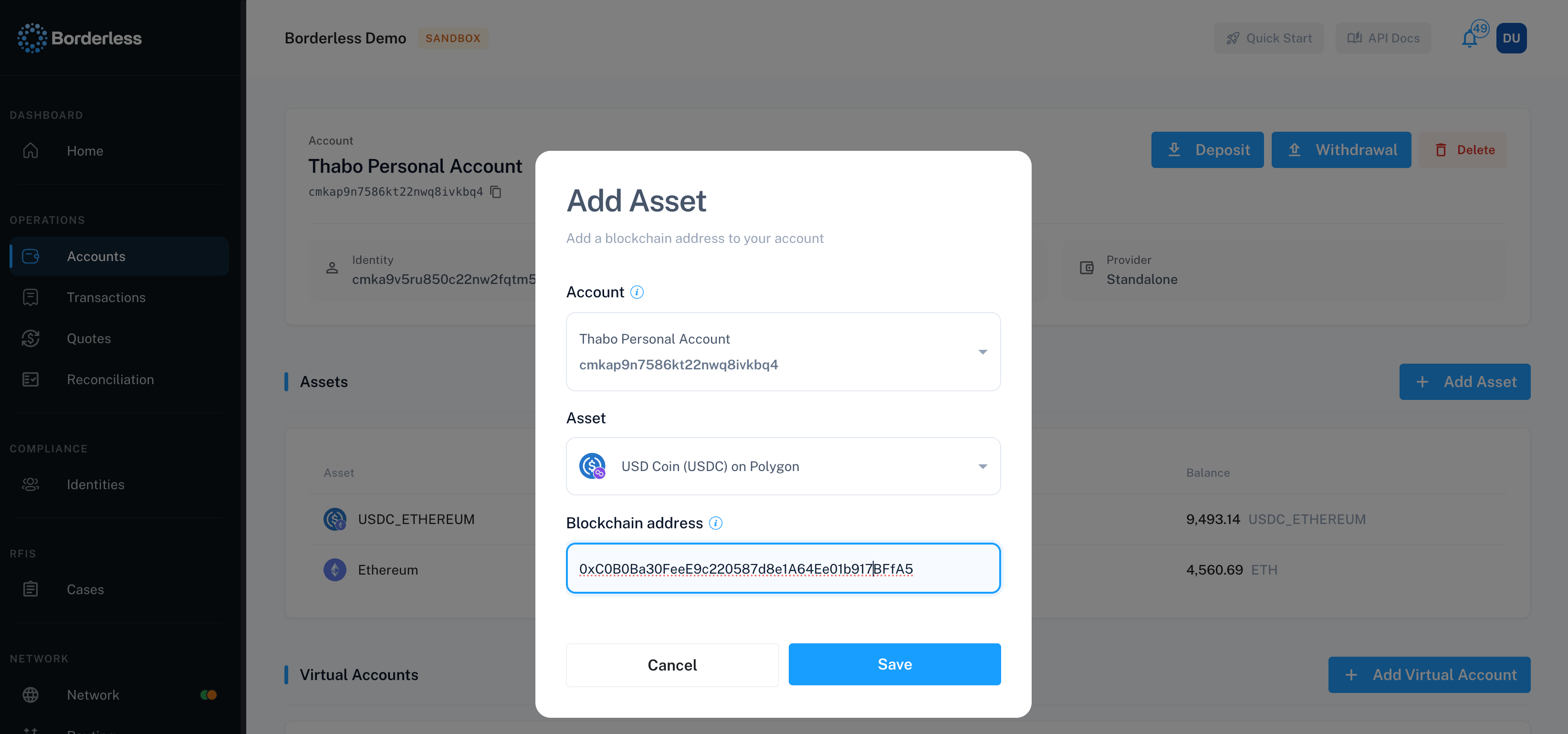
* **Standard (any wallet):** on the account page, click **Add Asset**, pick the asset, and fill in **Blockchain address** — the public chain address for that asset. Each asset on the account gets its own linked address.
* **Utila:** the linkage happens at account creation. In the **Create Account** modal, enter your Utila **Vault ID**; **Wallet ID (optional)** links an existing Utila wallet, or leave it blank and Borderless creates a new Utila wallet in that vault and connects it automatically. Adding assets afterward needs no address at all — they resolve through the vault.
* **Dfns:** on the account page, click **Add Asset**, pick the asset, and enter the **DFNS wallet ID** for it.
 ## Connect Utila or Dfns
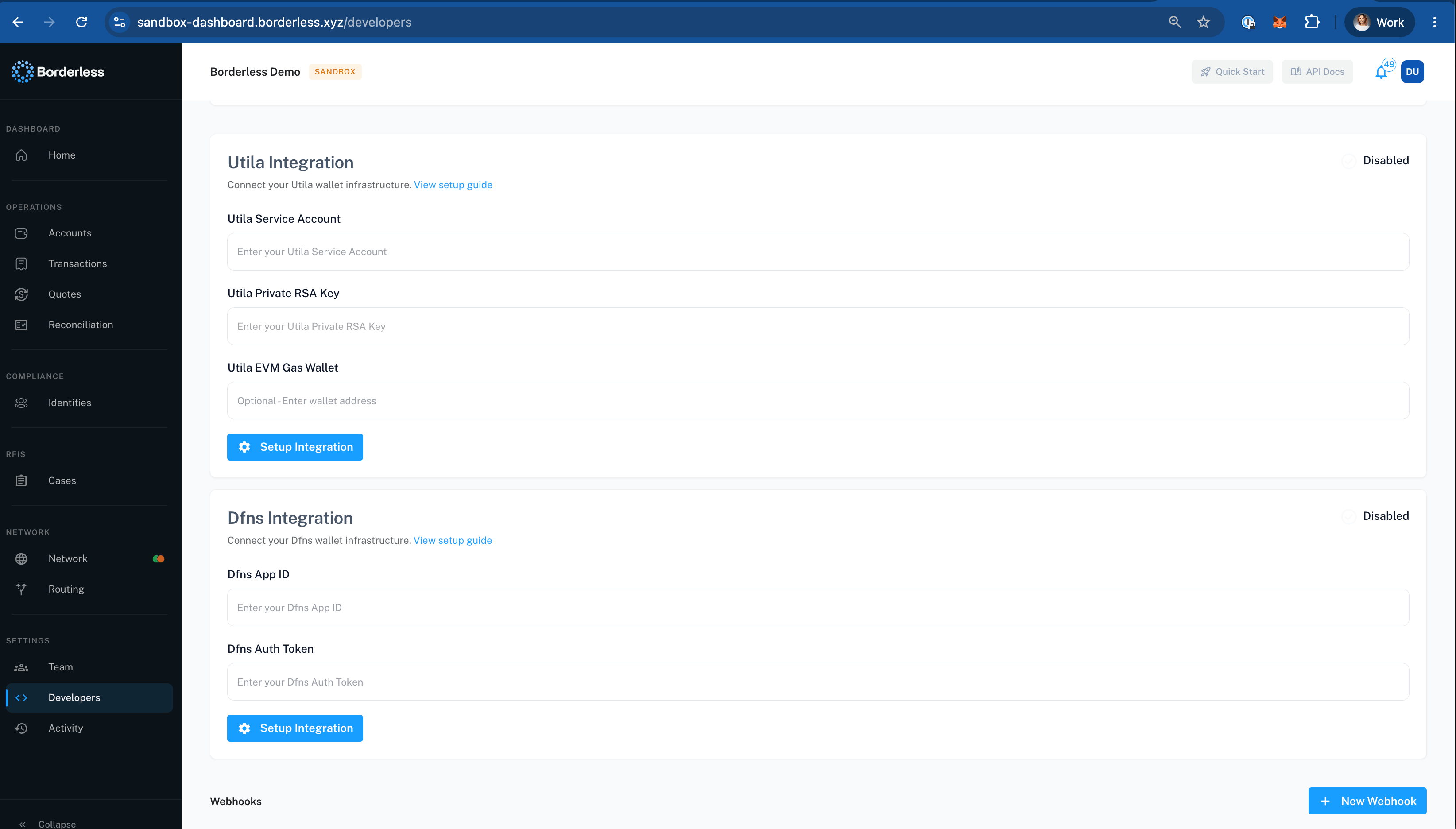
The integration lives on the **Developer Settings** page and requires the **Enable Integrations** permission (Owners have it by default). A status indicator on the card shows **Enabled** or **Disabled**.
* **Utila Integration** — fill in **Utila Service Account**, **Utila Private RSA Key**, and optionally **Utila EVM Gas Wallet**, then click **Setup Integration** (or **Update Configuration** if it's already connected). A **View setup guide** link on the card walks through generating these in Utila.
* **Dfns Integration** — fill in **Dfns App ID** and **Dfns Auth Token**, then **Setup Integration** / **Update Configuration**. Its **View setup guide** link covers the Dfns side.
## Connect Utila or Dfns
The integration lives on the **Developer Settings** page and requires the **Enable Integrations** permission (Owners have it by default). A status indicator on the card shows **Enabled** or **Disabled**.
* **Utila Integration** — fill in **Utila Service Account**, **Utila Private RSA Key**, and optionally **Utila EVM Gas Wallet**, then click **Setup Integration** (or **Update Configuration** if it's already connected). A **View setup guide** link on the card walks through generating these in Utila.
* **Dfns Integration** — fill in **Dfns App ID** and **Dfns Auth Token**, then **Setup Integration** / **Update Configuration**. Its **View setup guide** link covers the Dfns side.
 These credentials let Borderless initiate transactions into your wallet platform — signing and approval always stay in your platform, under your own policies.
## Send funds for a transaction
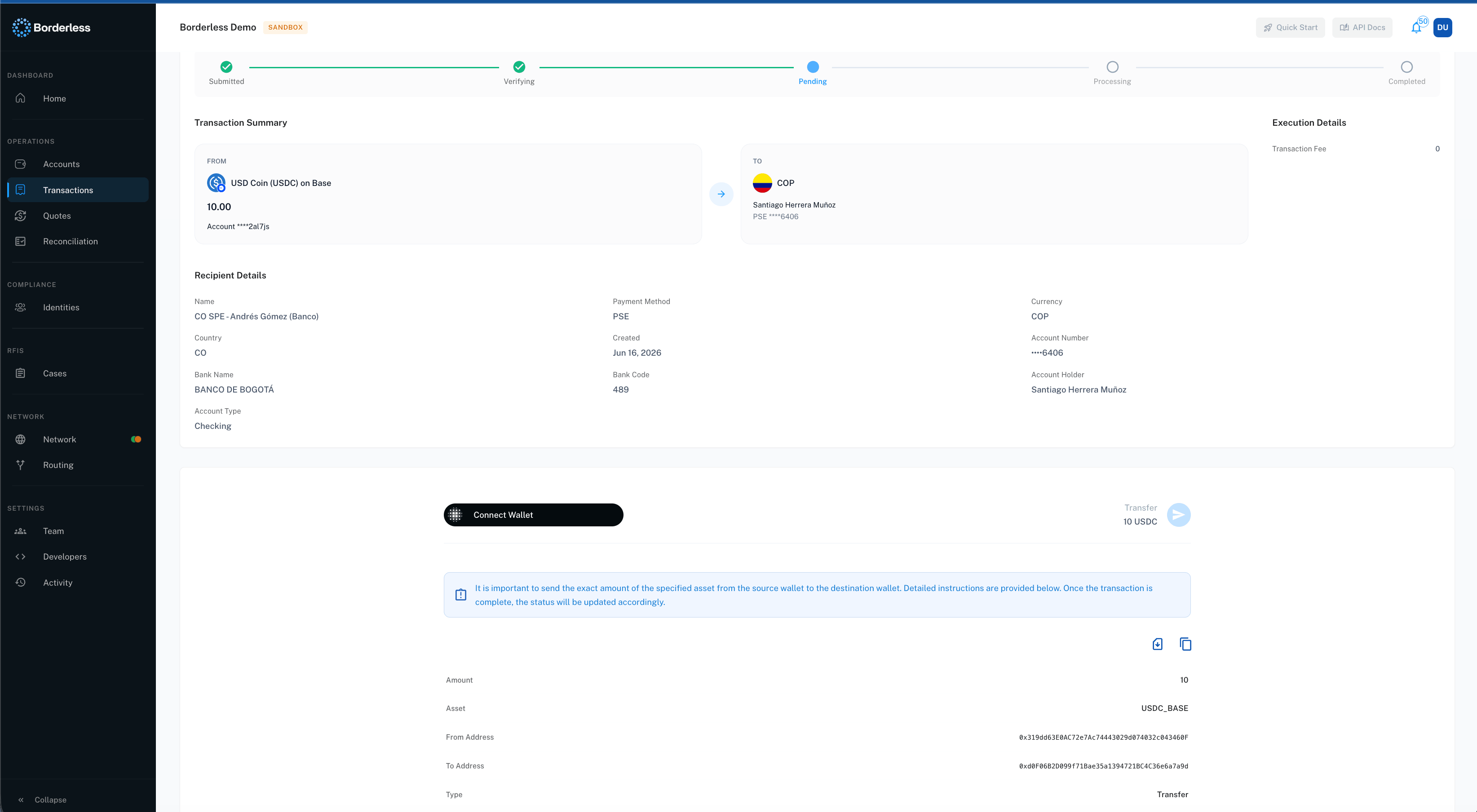
When a transaction is waiting on funds from you, its detail page shows an instructions card while the transaction is **Pending**.
* **Onchain (withdrawals):** the card lists **Amount**, **Asset**, **From Address**, and **To Address** — the settlement address from the provider. Click any row to copy its value, use the copy icon to copy all instructions at once, or download them as a PDF. Send the exact amount to the **To Address** from your linked wallet. If your organization is on the standard setup, a **Connect Wallet** option may also appear on supported networks — connect the linked wallet and send directly from the platform instead of copying the address.
* **Fiat (deposits):** the card lists bank details — account holder, IBAN or account number, bank name and address, and a **Deposit Message** code. Include the deposit message in your payment's memo; without it, the payment can't be matched to your transaction.
These credentials let Borderless initiate transactions into your wallet platform — signing and approval always stay in your platform, under your own policies.
## Send funds for a transaction
When a transaction is waiting on funds from you, its detail page shows an instructions card while the transaction is **Pending**.
* **Onchain (withdrawals):** the card lists **Amount**, **Asset**, **From Address**, and **To Address** — the settlement address from the provider. Click any row to copy its value, use the copy icon to copy all instructions at once, or download them as a PDF. Send the exact amount to the **To Address** from your linked wallet. If your organization is on the standard setup, a **Connect Wallet** option may also appear on supported networks — connect the linked wallet and send directly from the platform instead of copying the address.
* **Fiat (deposits):** the card lists bank details — account holder, IBAN or account number, bank name and address, and a **Deposit Message** code. Include the deposit message in your payment's memo; without it, the payment can't be matched to your transaction.
 If your organization uses the Utila or Dfns integration, there's nothing to copy: the transaction appears in your wallet platform's queue for approval, and once it's signed and sent there, the Borderless transaction moves forward on its own.
After the pending stage, the same details remain available on the transaction's detail page under **Settlement Instructions**.
## Troubleshooting
**"The connected wallet address does not match the account address."** The wallet you connected isn't the one linked to this account's asset. Switch your wallet to the linked address, or connect the right wallet.
**"Wallet transfers are not supported in the Sandbox environment..."** Expected — in sandbox, you don't need to actually move funds for a transaction to process.
**Deposit, Withdrawal, or Create Account buttons are missing entirely.** Transaction actions only appear once your organization's wallet setup is configured. If none of these buttons show anywhere, contact your Borderless representative to check your organization's wallet provider configuration.
**"Unable to setup Utila integration..." / "Unable to setup Dfns integration..."** The credentials didn't save. Re-check each value against your wallet platform (the setup guide linked on the card shows where each one comes from) and try again.
**A fiat deposit isn't matching.** Confirm the payment included the **Deposit Message** code in its memo and that the amount sent matches the instructions exactly.
If your organization uses the Utila or Dfns integration, there's nothing to copy: the transaction appears in your wallet platform's queue for approval, and once it's signed and sent there, the Borderless transaction moves forward on its own.
After the pending stage, the same details remain available on the transaction's detail page under **Settlement Instructions**.
## Troubleshooting
**"The connected wallet address does not match the account address."** The wallet you connected isn't the one linked to this account's asset. Switch your wallet to the linked address, or connect the right wallet.
**"Wallet transfers are not supported in the Sandbox environment..."** Expected — in sandbox, you don't need to actually move funds for a transaction to process.
**Deposit, Withdrawal, or Create Account buttons are missing entirely.** Transaction actions only appear once your organization's wallet setup is configured. If none of these buttons show anywhere, contact your Borderless representative to check your organization's wallet provider configuration.
**"Unable to setup Utila integration..." / "Unable to setup Dfns integration..."** The credentials didn't save. Re-check each value against your wallet platform (the setup guide linked on the card shows where each one comes from) and try again.
**A fiat deposit isn't matching.** Confirm the payment included the **Deposit Message** code in its memo and that the amount sent matches the instructions exactly.