> ## Documentation Index
> Fetch the complete documentation index at: https://docs.borderless.xyz/llms.txt
> Use this file to discover all available pages before exploring further.
# Routing
> Update provider routing without code: defaults, rail overrides, and bulk setup.
Every transaction needs a provider, and there are two ways to pick one. You can name the provider explicitly when creating the transaction — in the UI or through the API — and that choice always wins. Or you can leave it to **default routing**: the rules on this page, which decide the provider for every transaction that doesn't name one.
Default routing is what makes provider changes a configuration edit instead of a code change. If a provider is having downtime and you want to fail over, you don't ship a hotfix renaming the provider in your API requests — you update the routing configuration from provider A to provider B, and every new transaction follows it. No deploy, no engineering involved.
Routing changes apply to newly created transactions; transactions already in flight keep the provider they started with.
This guide covers reading the **Routing** page, setting routes in bulk — the most common workflow, especially right after enabling a new provider — and managing rules one at a time.
## Before you start
Only users with the **Owner** role can add, edit, remove, or bulk-apply routing rules. Other roles can view the Routing page — the country list, drawer, stats, and filters — but won't see any of the buttons described below.
## Find the Routing page
Click **Routing** in the left navigation, under **Network**. The page opens with the header **"Routing"** and the subtitle **"Choose your provider defaults for each corridor."**
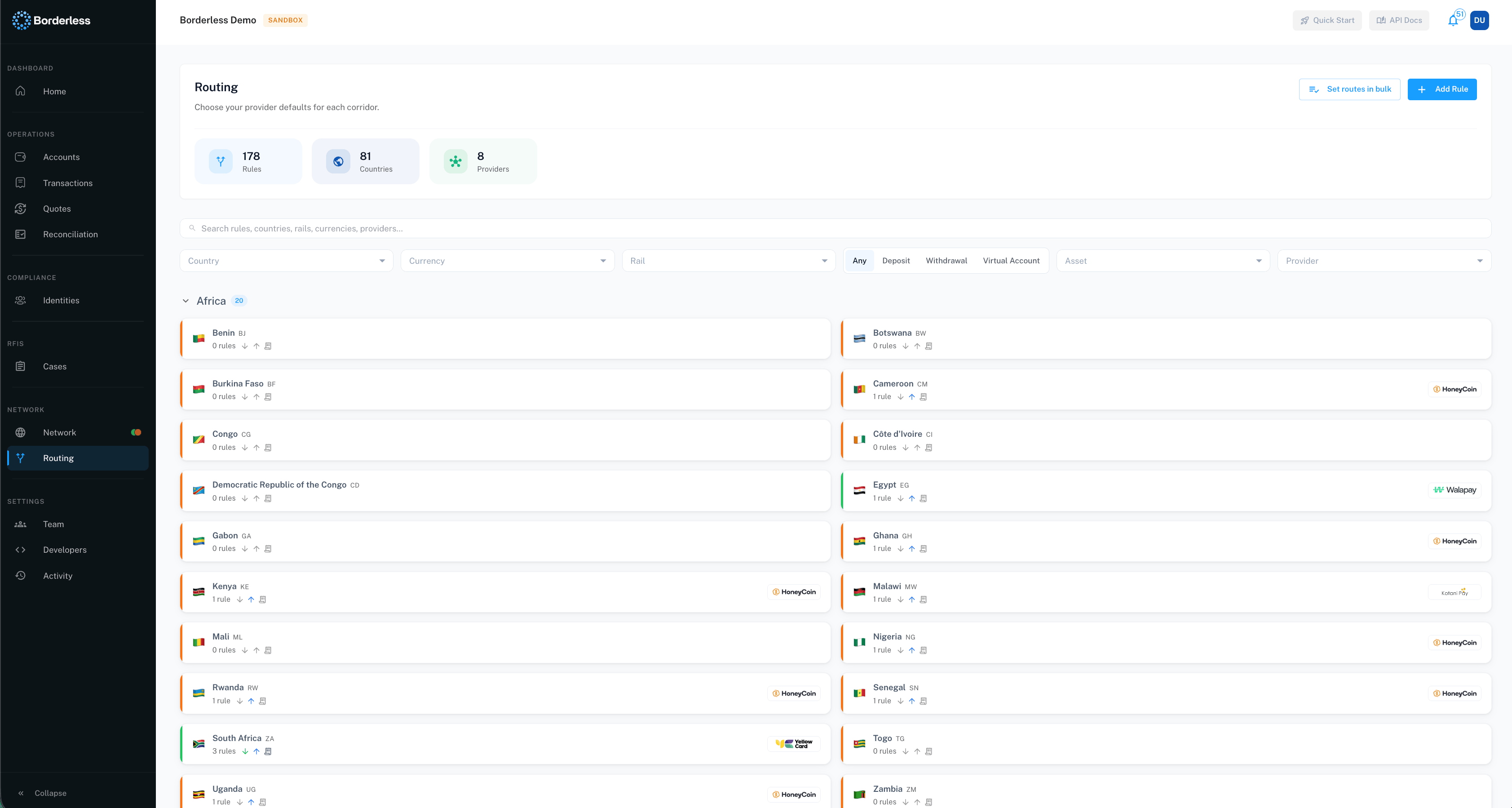 Three tiles at the top summarize your setup:
* **Rules** — total number of routing rules configured
* **Countries** — how many countries have at least one rule
* **Providers** — how many distinct providers are used as a default
Below that, countries are grouped by region. Click a region's header row to collapse or expand it.
If you haven't configured anything yet, you'll see **"No routes configured yet."** with the warning **"Every corridor needs a configured route or its transactions will error."** Any corridor without a rule will fail when a transaction tries to use it, so this page isn't just informational — it controls what actually processes.
## Read a country's status at a glance
Each country appears as a card with a colored bar on the left:
* **Orange** — at least one operation your active providers support has no default rule yet. Transactions for that operation will error.
* **Blue** — every operation has a default, but at least one rail-level override is layered on top.
* **Green** — every operation has a default and there are no overrides.
The card also shows the country's flag, name, and ISO code; a rule count (plus an override count, if any); three small icons for Deposit, Withdrawal, and Virtual Account (colored if that operation has a rule, greyed out if not); and up to three provider logos, with a **+N** indicator if more providers are used.
Click a country card to open its drawer and see the full rule list.
## Open a country's rule list
Click any country card. A panel slides in from the right showing the country name, ISO code, and rule count, with an **X** button to close it.
Three tiles at the top summarize your setup:
* **Rules** — total number of routing rules configured
* **Countries** — how many countries have at least one rule
* **Providers** — how many distinct providers are used as a default
Below that, countries are grouped by region. Click a region's header row to collapse or expand it.
If you haven't configured anything yet, you'll see **"No routes configured yet."** with the warning **"Every corridor needs a configured route or its transactions will error."** Any corridor without a rule will fail when a transaction tries to use it, so this page isn't just informational — it controls what actually processes.
## Read a country's status at a glance
Each country appears as a card with a colored bar on the left:
* **Orange** — at least one operation your active providers support has no default rule yet. Transactions for that operation will error.
* **Blue** — every operation has a default, but at least one rail-level override is layered on top.
* **Green** — every operation has a default and there are no overrides.
The card also shows the country's flag, name, and ISO code; a rule count (plus an override count, if any); three small icons for Deposit, Withdrawal, and Virtual Account (colored if that operation has a rule, greyed out if not); and up to three provider logos, with a **+N** indicator if more providers are used.
Click a country card to open its drawer and see the full rule list.
## Open a country's rule list
Click any country card. A panel slides in from the right showing the country name, ISO code, and rule count, with an **X** button to close it.
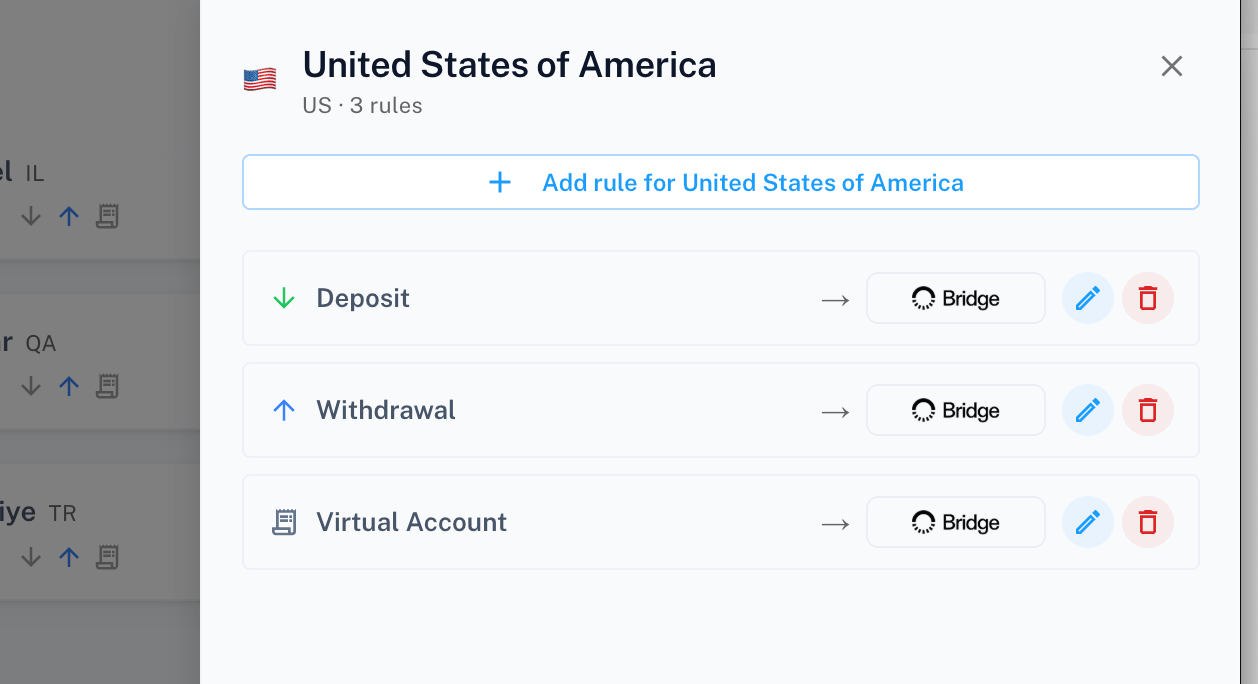 Each row is one operation — Deposit, Withdrawal, or Virtual Account — plus any rail-specific overrides for that operation:
* If a rule exists, you'll see an arrow, then the provider's logo or name, followed by edit and remove icon buttons.
* If a row is a rail-level override (for example, a rule that only applies to SEPA), it shows the rail name and an **OVERRIDE** tag. The rail-level rule takes precedence over the country/operation default for transactions on that rail.
* If no default exists yet for that operation, you'll see an orange shield icon and **"No default set"**.
## Set routes in bulk
Use this to turn a provider on across many countries in one pass, rather than adding rules country by country. This is the usual workflow when you've just enabled a provider: it likely covers more than one country, and a single bulk pass routes everything it supports.
1. On the Routing home page, click **Set routes in bulk**.
2. Choose a **Provider**. Only providers with active status appear. Until you pick one, the modal shows **"Select a provider to see the routes you can configure."**
3. A chip list of countries the provider supports appears, all selected by default. Use **Select all** or **Clear** to adjust, or click individual chips.
4. Under **Apply to**, choose **"New routes only"** to skip corridors already routed to a different provider, or **"All — replace existing"** to include and overwrite them.
5. Under **Direction**, filter the corridor list by **All**, Deposit, Withdrawal, or Virtual Account.
6. Check the boxes for the corridors you want this provider to handle. Each row shows a status:
* **"No route configured"** — nothing is set yet.
* **"Replaces \{ProviderName}"** — a different provider currently handles this corridor. Only selectable in **"All — replace existing"** mode.
* **"Already routed here"** — this provider is already the default. It's checked by default. If the row is backed by a rail-specific override, unchecking it removes that override. If it's backed by the country-level default and the operation has more than one rail row, unchecking just one of them leaves the country-level rule in place — you need to uncheck every row for that operation to remove it, and nothing tells you a partial uncheck didn't take effect.
7. Check the summary banner — it reads **"Apply \{n} change(s) for \{Provider} — …"** with the route and country-default counts.
8. Click **Apply \{n} change(s)**.
Each row is one operation — Deposit, Withdrawal, or Virtual Account — plus any rail-specific overrides for that operation:
* If a rule exists, you'll see an arrow, then the provider's logo or name, followed by edit and remove icon buttons.
* If a row is a rail-level override (for example, a rule that only applies to SEPA), it shows the rail name and an **OVERRIDE** tag. The rail-level rule takes precedence over the country/operation default for transactions on that rail.
* If no default exists yet for that operation, you'll see an orange shield icon and **"No default set"**.
## Set routes in bulk
Use this to turn a provider on across many countries in one pass, rather than adding rules country by country. This is the usual workflow when you've just enabled a provider: it likely covers more than one country, and a single bulk pass routes everything it supports.
1. On the Routing home page, click **Set routes in bulk**.
2. Choose a **Provider**. Only providers with active status appear. Until you pick one, the modal shows **"Select a provider to see the routes you can configure."**
3. A chip list of countries the provider supports appears, all selected by default. Use **Select all** or **Clear** to adjust, or click individual chips.
4. Under **Apply to**, choose **"New routes only"** to skip corridors already routed to a different provider, or **"All — replace existing"** to include and overwrite them.
5. Under **Direction**, filter the corridor list by **All**, Deposit, Withdrawal, or Virtual Account.
6. Check the boxes for the corridors you want this provider to handle. Each row shows a status:
* **"No route configured"** — nothing is set yet.
* **"Replaces \{ProviderName}"** — a different provider currently handles this corridor. Only selectable in **"All — replace existing"** mode.
* **"Already routed here"** — this provider is already the default. It's checked by default. If the row is backed by a rail-specific override, unchecking it removes that override. If it's backed by the country-level default and the operation has more than one rail row, unchecking just one of them leaves the country-level rule in place — you need to uncheck every row for that operation to remove it, and nothing tells you a partial uncheck didn't take effect.
7. Check the summary banner — it reads **"Apply \{n} change(s) for \{Provider} — …"** with the route and country-default counts.
8. Click **Apply \{n} change(s)**.
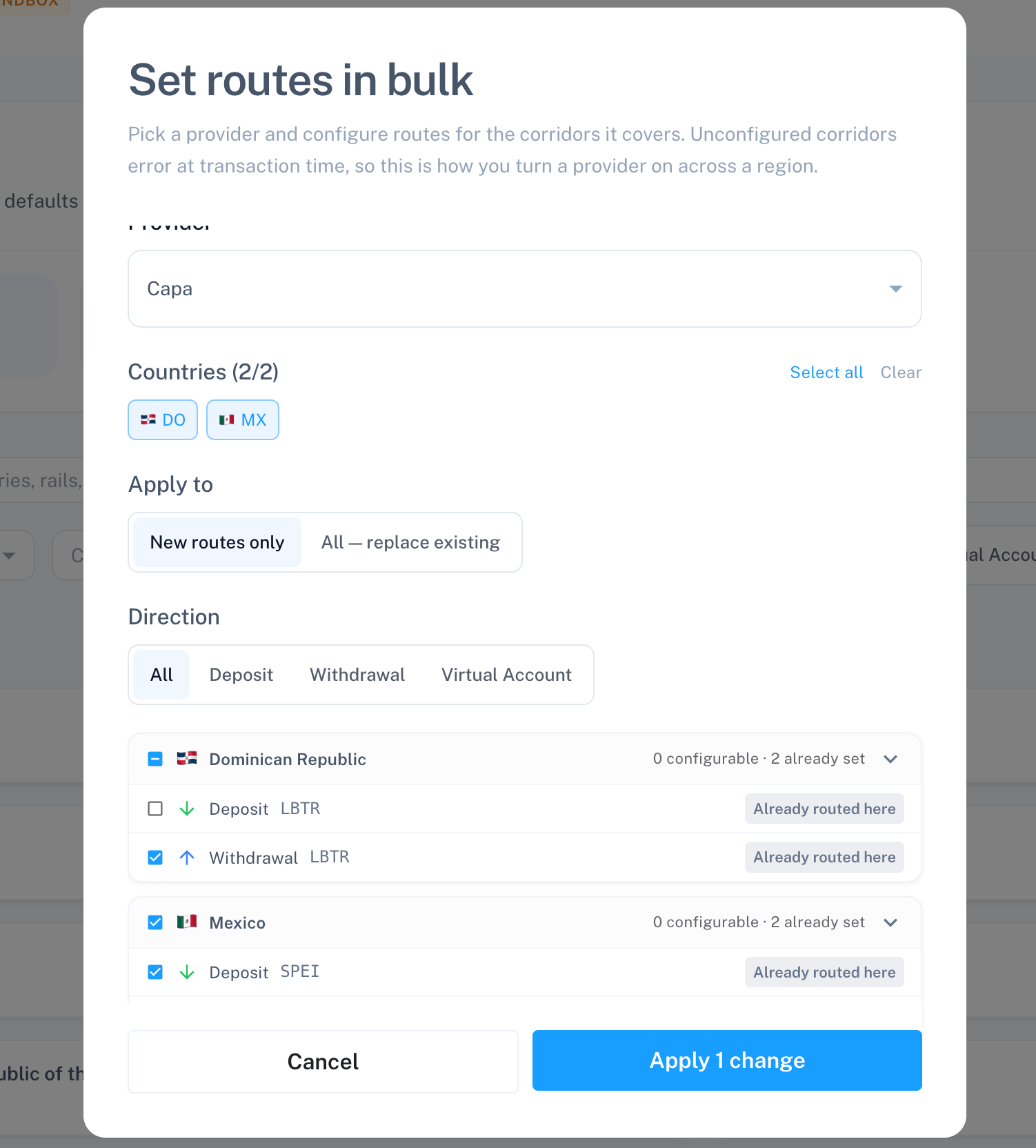 The button stays disabled until you've staged at least one change. On success, you'll see **"Routing rules updated."**
In **"New routes only"** mode, corridors already routed to another provider show their **"Replaces X"** badge but aren't selectable — double-check that mode if you expect full coverage across a region and some corridors are still on another provider.
## Add a routing rule
You can start this from two places: the **Add Rule** button on the Routing home page, or **Add rule for \{Country}** inside a country's drawer (the second option pre-fills the country for you).
1. Click **Add Rule** (or **Add rule for \{Country}**).
2. If the country field is empty, choose a country. Only countries your active providers actually support appear in this list — you can't create a rule for a country/provider combination that isn't live.
3. Under **Operations**, select one or more of Deposit, Withdrawal, or Virtual Account.
4. Optionally set **Rail** to narrow the rule to a specific rail (for example SEPA). Leave it on **"Any rail"** to set the country-level default. If you selected Virtual Account, the rail field is disabled and shows **"Not used for Virtual Account"** — virtual accounts don't have a rail.
5. Choose a **Provider**. Only providers that can handle every operation you selected, for that country and rail, appear here. If none qualify, the field shows **"No active provider supports this"** — try removing an operation or rail to widen the options.
6. Click **Add rule**.
The button stays disabled until you've staged at least one change. On success, you'll see **"Routing rules updated."**
In **"New routes only"** mode, corridors already routed to another provider show their **"Replaces X"** badge but aren't selectable — double-check that mode if you expect full coverage across a region and some corridors are still on another provider.
## Add a routing rule
You can start this from two places: the **Add Rule** button on the Routing home page, or **Add rule for \{Country}** inside a country's drawer (the second option pre-fills the country for you).
1. Click **Add Rule** (or **Add rule for \{Country}**).
2. If the country field is empty, choose a country. Only countries your active providers actually support appear in this list — you can't create a rule for a country/provider combination that isn't live.
3. Under **Operations**, select one or more of Deposit, Withdrawal, or Virtual Account.
4. Optionally set **Rail** to narrow the rule to a specific rail (for example SEPA). Leave it on **"Any rail"** to set the country-level default. If you selected Virtual Account, the rail field is disabled and shows **"Not used for Virtual Account"** — virtual accounts don't have a rail.
5. Choose a **Provider**. Only providers that can handle every operation you selected, for that country and rail, appear here. If none qualify, the field shows **"No active provider supports this"** — try removing an operation or rail to widen the options.
6. Click **Add rule**.
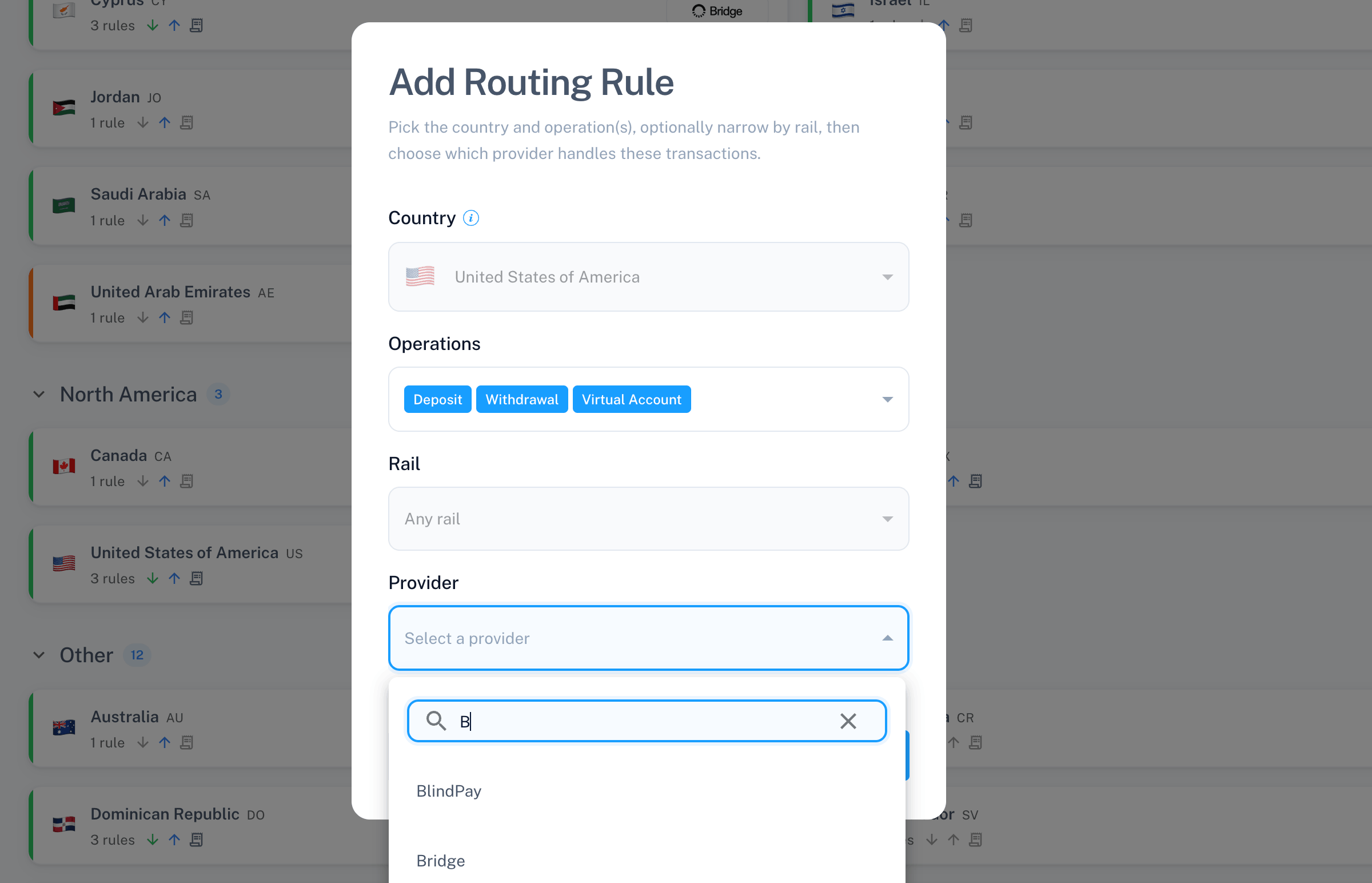 If you selected more than one operation, this creates one separate rule per operation, all pointing to the same provider and rail — not a single combined rule. A success toast reads **"Routing rule saved."**
## Edit a routing rule
Click the edit icon on any rule row in the country drawer. The modal opens with the title **"Edit Routing Rule"**.
You can only change the provider. Country, operations, and rail are locked — to change what a rule applies to, delete it and add a new one instead. Click **Save changes** to confirm. You'll see **"Routing rule saved."** on success.
## Remove a routing rule
Click the remove icon on a rule row. A confirmation modal titled **"Remove Routing Rule"** asks you to confirm, naming the country, operation, and rail (if any). Click **Remove** to delete it.
You'll see **"Routing rule removed."** on success. This can't be undone — there's no restore option. Once removed, that operation reverts to having no default (or falls back to the country-level default, if the deleted rule was a rail-specific override).
## Search and filter
A search box above the country grid lets you type to match rules, countries, rails, currencies, or providers directly — its placeholder reads **"Search rules, countries, rails, currencies, providers…"**. Below it, six controls narrow the list further:
* **Country**, **Currency**, **Rail**, **Asset**, and **Provider** — each a multi-select; pick as many values as you need in any of them.
* **Direction** — a tab group with **Any**, **Deposit**, **Withdrawal**, and **Virtual Account**; select one to narrow the grid to countries with routing coverage for that operation.
All of these combine — searching text while filters are set narrows to countries matching every condition at once. If no countries match, you'll see **"No countries match your filters."** with a **Clear all filters** link. A **Clear** button also appears next to the search box whenever any filter is active.
## Troubleshooting
**"No default set" next to an operation.** That operation has no rule yet for this country. Add one with **Add rule for \{Country}** or through **Set routes in bulk**.
**Orange bar on a country card.** Same issue, shown at the country level — at least one supported operation has no default. Add a rule to fix it before transactions on that operation error.
**"No active provider supports this" in the Provider field.** No active provider can handle every operation and rail you selected together. Try selecting fewer operations, or leave the rail on **"Any rail"**.
**"No corridors match the current selection" in the bulk modal.** Adjust the Direction filter or the countries you've selected — there's nothing left to show for the current combination.
**Unable to load, save, or apply changes.** You will see a toast: **"Unable to load routing defaults. Please check back shortly."**, **"Unable to save routing rule. Please try again."**, **"Unable to update routing rules. Please try again."**, or **"Unable to remove routing rule. Please try again."** depending on which action failed. Retry the action; if it keeps failing, contact your Borderless representative.
**I removed the wrong rule.** There's no undo. Add the rule again with the same country, operation, rail, and provider.
**I need to change what a rule applies to, not just its provider.** Editing only changes the provider. Delete the rule and create a new one with the country, operations, and rail you want.
If you selected more than one operation, this creates one separate rule per operation, all pointing to the same provider and rail — not a single combined rule. A success toast reads **"Routing rule saved."**
## Edit a routing rule
Click the edit icon on any rule row in the country drawer. The modal opens with the title **"Edit Routing Rule"**.
You can only change the provider. Country, operations, and rail are locked — to change what a rule applies to, delete it and add a new one instead. Click **Save changes** to confirm. You'll see **"Routing rule saved."** on success.
## Remove a routing rule
Click the remove icon on a rule row. A confirmation modal titled **"Remove Routing Rule"** asks you to confirm, naming the country, operation, and rail (if any). Click **Remove** to delete it.
You'll see **"Routing rule removed."** on success. This can't be undone — there's no restore option. Once removed, that operation reverts to having no default (or falls back to the country-level default, if the deleted rule was a rail-specific override).
## Search and filter
A search box above the country grid lets you type to match rules, countries, rails, currencies, or providers directly — its placeholder reads **"Search rules, countries, rails, currencies, providers…"**. Below it, six controls narrow the list further:
* **Country**, **Currency**, **Rail**, **Asset**, and **Provider** — each a multi-select; pick as many values as you need in any of them.
* **Direction** — a tab group with **Any**, **Deposit**, **Withdrawal**, and **Virtual Account**; select one to narrow the grid to countries with routing coverage for that operation.
All of these combine — searching text while filters are set narrows to countries matching every condition at once. If no countries match, you'll see **"No countries match your filters."** with a **Clear all filters** link. A **Clear** button also appears next to the search box whenever any filter is active.
## Troubleshooting
**"No default set" next to an operation.** That operation has no rule yet for this country. Add one with **Add rule for \{Country}** or through **Set routes in bulk**.
**Orange bar on a country card.** Same issue, shown at the country level — at least one supported operation has no default. Add a rule to fix it before transactions on that operation error.
**"No active provider supports this" in the Provider field.** No active provider can handle every operation and rail you selected together. Try selecting fewer operations, or leave the rail on **"Any rail"**.
**"No corridors match the current selection" in the bulk modal.** Adjust the Direction filter or the countries you've selected — there's nothing left to show for the current combination.
**Unable to load, save, or apply changes.** You will see a toast: **"Unable to load routing defaults. Please check back shortly."**, **"Unable to save routing rule. Please try again."**, **"Unable to update routing rules. Please try again."**, or **"Unable to remove routing rule. Please try again."** depending on which action failed. Retry the action; if it keeps failing, contact your Borderless representative.
**I removed the wrong rule.** There's no undo. Add the rule again with the same country, operation, rail, and provider.
**I need to change what a rule applies to, not just its provider.** Editing only changes the provider. Delete the rule and create a new one with the country, operations, and rail you want.