> ## Documentation Index
> Fetch the complete documentation index at: https://docs.borderless.xyz/llms.txt
> Use this file to discover all available pages before exploring further.
# Provider Health
> Provider status, incidents, and upcoming maintenance, all in one place.
Is a provider having issues right now? Was it down last week? Is maintenance coming that could affect your payouts? The platform answers these in the places you already work — the **Network** page, each provider's drawer, and the transactions an incident might affect — so you don't need to watch each provider's own status page.
## Where the health data comes from
Two sources feed everything on this page. The first is the providers' own status pages: Borderless aggregates them all, so instead of checking each provider's page one by one, you monitor every provider from a single place.
The second is the Borderless network itself. Status page data is augmented with real-world transaction data for each provider across the entire network. If a provider's status page shows all-clear but transactions through that provider start failing across the network, Borderless notifies you — often before the provider has posted anything. That early signal is something only network-wide data can produce, and it's the difference between failing over as an issue develops and waiting for a status page to catch up.
## Check a provider's current status
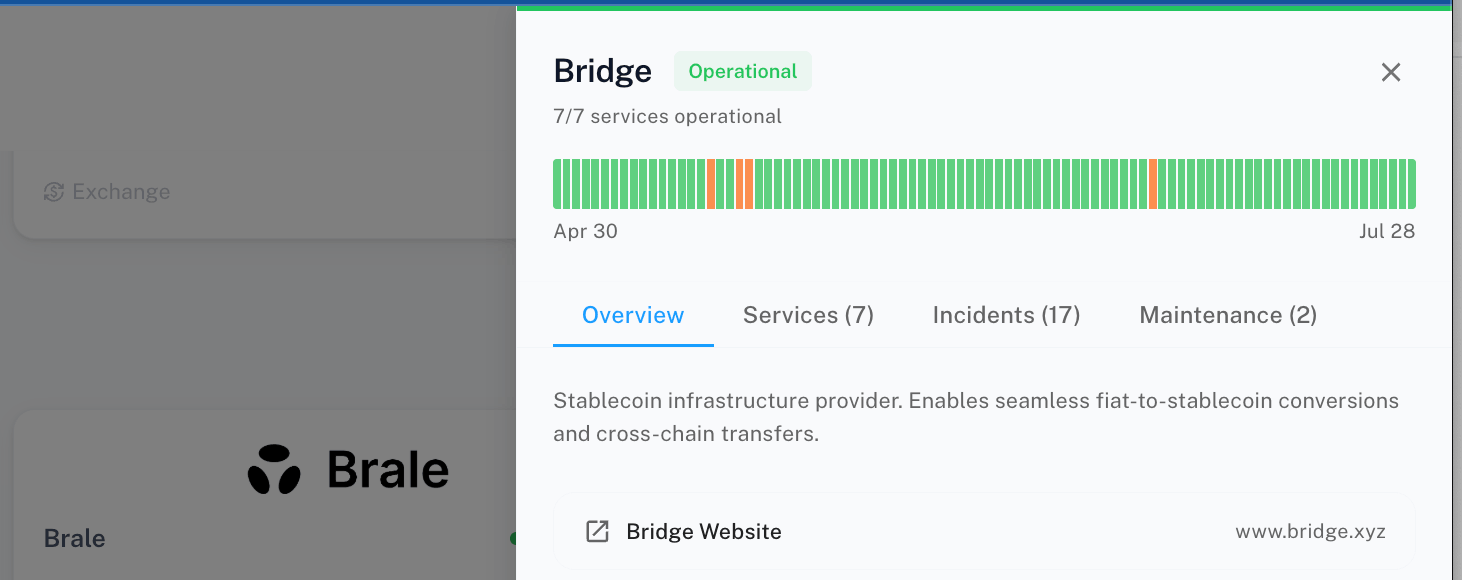
Every provider card on the **Network** page carries a health indicator when health data is available. Open the provider's drawer for the detail: the header shows a status badge reading one of **Operational**, **Degraded**, **Partial Outage**, **Major Outage**, or **Maintenance**, along with how many of its services are operational.
Where health data exists, the header also shows an **uptime bar** — a day-by-day strip of color blocks covering recent history. Hover any day for its date, status, and (if not operational) the affected components. Green end to end means everything's been operational.
 Not every provider reports health data — if the badge, uptime bar, and tabs described below are missing, that provider doesn't have live health reporting yet.
## Review incidents
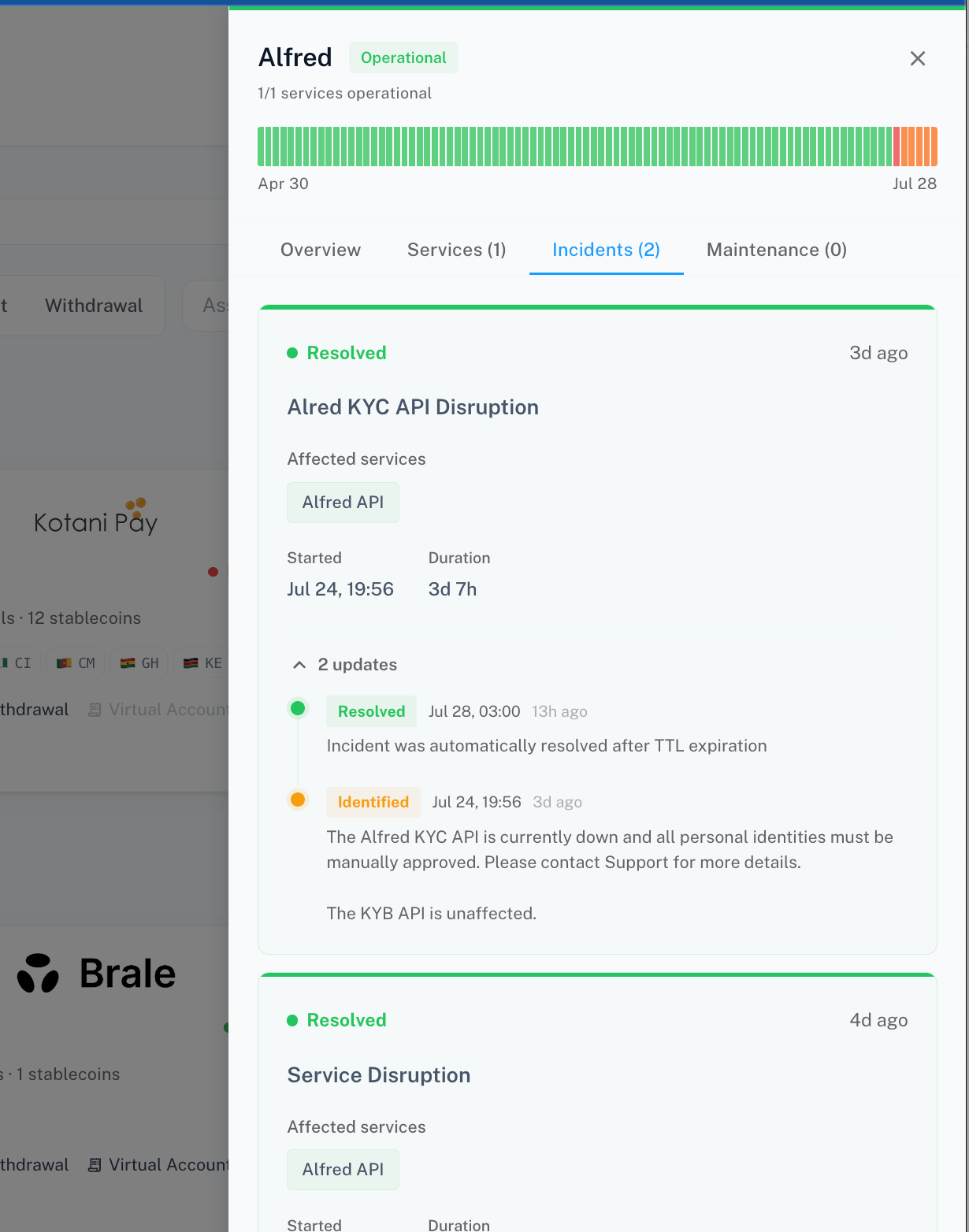
If the provider has live health data, the drawer shows tabs with live counts in their labels — for example **Services (3)**, **Incidents (1)**, **Maintenance (0)**:
* **Services** — one row per service, each with its own status, so you can see exactly which capability is affected.
* **Incidents** — active and past incidents.
* **Maintenance** — scheduled and completed maintenance windows.
An active incident also shows as a banner on the provider's **Overview** tab, so you'll see it even without opening the Incidents tab.
Each incident card shows chips for the affected services, a Start/Duration row, and a **View on Status Page** link out to the Borderless status page. If the incident has updates, a collapsible "N updates" toggle expands into the timeline — each update carries a status (**Investigating**, **Identified**, **Monitoring**, or **Resolved**) with its timestamp and message, so you can follow an incident from first report to resolution.
Not every provider reports health data — if the badge, uptime bar, and tabs described below are missing, that provider doesn't have live health reporting yet.
## Review incidents
If the provider has live health data, the drawer shows tabs with live counts in their labels — for example **Services (3)**, **Incidents (1)**, **Maintenance (0)**:
* **Services** — one row per service, each with its own status, so you can see exactly which capability is affected.
* **Incidents** — active and past incidents.
* **Maintenance** — scheduled and completed maintenance windows.
An active incident also shows as a banner on the provider's **Overview** tab, so you'll see it even without opening the Incidents tab.
Each incident card shows chips for the affected services, a Start/Duration row, and a **View on Status Page** link out to the Borderless status page. If the incident has updates, a collapsible "N updates" toggle expands into the timeline — each update carries a status (**Investigating**, **Identified**, **Monitoring**, or **Resolved**) with its timestamp and message, so you can follow an incident from first report to resolution.
 ## Check upcoming maintenance
The **Maintenance** tab lists scheduled and completed maintenance windows, with the same card layout as incidents — affected services, start and duration. Scheduled maintenance also appears as a banner on the provider's **Overview** tab. Check it before planning large payout batches through a provider.
## See health where it matters: on transactions
If a provider has an active incident, transactions routed through it warn you directly — the transaction's detail page shows "This provider has an active incident — it may affect this transaction." If a transaction seems slow, this is the first thing to check.
## At a glance, from anywhere
You don't have to open the Network page to know where things stand:
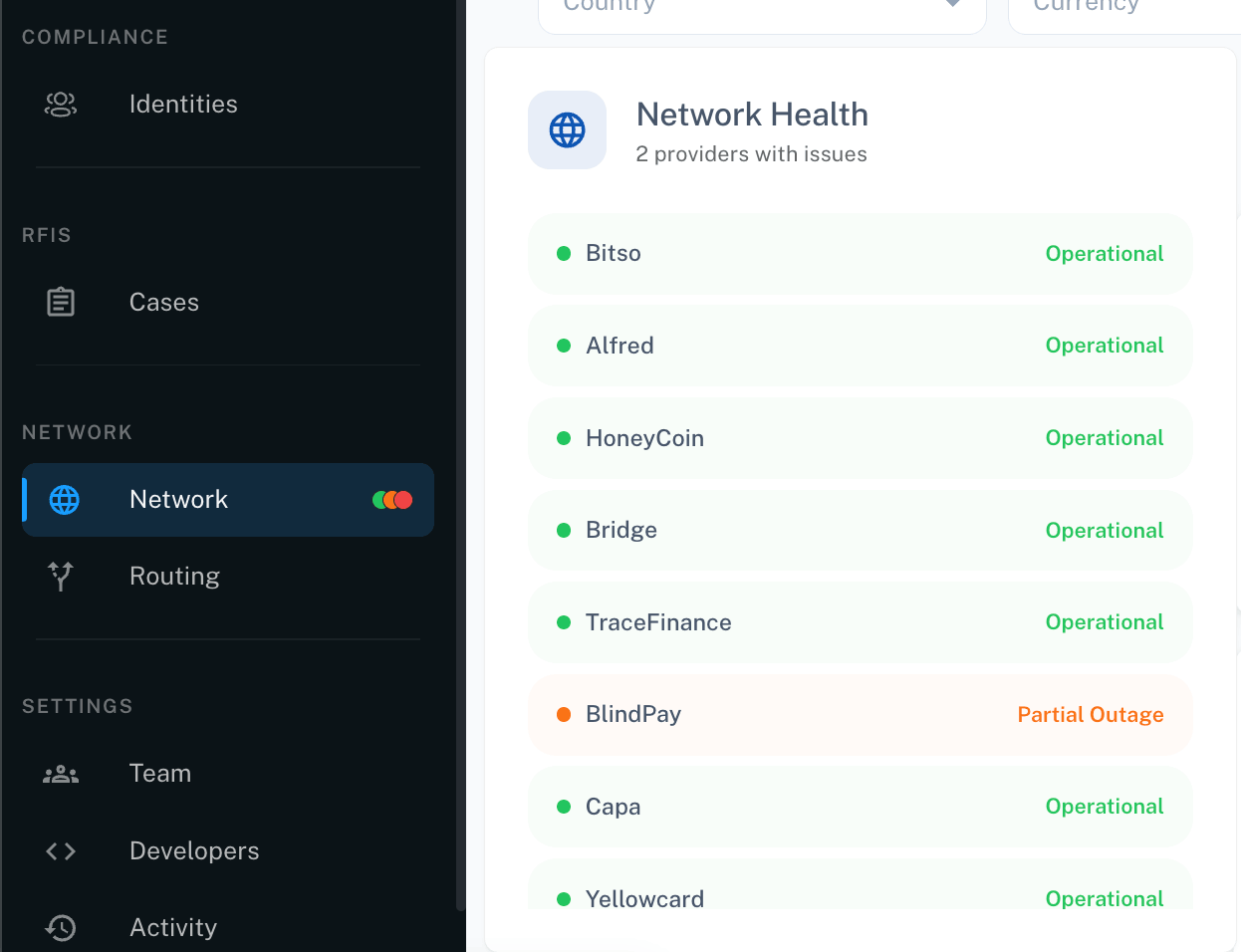
* **In the nav:** the **Network** item carries a real-time status indicator — a single green dot when every provider is healthy, green plus orange when some are degraded, and red when a provider is fully down. One dot appears per status present in your network, so a mixed picture is visible as mixed colors. Hover it for a summary of which providers have issues. It's on screen wherever you are in the platform.
* **On Home:** the network health panel summarizes provider status across your network, so a developing issue is visible the moment you log in.
## Check upcoming maintenance
The **Maintenance** tab lists scheduled and completed maintenance windows, with the same card layout as incidents — affected services, start and duration. Scheduled maintenance also appears as a banner on the provider's **Overview** tab. Check it before planning large payout batches through a provider.
## See health where it matters: on transactions
If a provider has an active incident, transactions routed through it warn you directly — the transaction's detail page shows "This provider has an active incident — it may affect this transaction." If a transaction seems slow, this is the first thing to check.
## At a glance, from anywhere
You don't have to open the Network page to know where things stand:
* **In the nav:** the **Network** item carries a real-time status indicator — a single green dot when every provider is healthy, green plus orange when some are degraded, and red when a provider is fully down. One dot appears per status present in your network, so a mixed picture is visible as mixed colors. Hover it for a summary of which providers have issues. It's on screen wherever you are in the platform.
* **On Home:** the network health panel summarizes provider status across your network, so a developing issue is visible the moment you log in.
 ## Troubleshooting
**A provider shows no health information at all.** Not every provider reports live health data. No badge or tabs means no reporting for that provider yet — not that the provider is down.
**A transaction is delayed and I don't see an incident.** Check the provider's drawer on **Network** for its Services tab — a single degraded service may not take the whole provider out of **Operational**. Reach out to your Borderless representative if the delay persists with no visible cause.
**An incident is resolved but my transaction still hasn't moved.** Providers work through backlogs after incidents. If a transaction stays stuck well after resolution, contact your Borderless representative with the transaction ID.
## Troubleshooting
**A provider shows no health information at all.** Not every provider reports live health data. No badge or tabs means no reporting for that provider yet — not that the provider is down.
**A transaction is delayed and I don't see an incident.** Check the provider's drawer on **Network** for its Services tab — a single degraded service may not take the whole provider out of **Operational**. Reach out to your Borderless representative if the delay persists with no visible cause.
**An incident is resolved but my transaction still hasn't moved.** Providers work through backlogs after incidents. If a transaction stays stuck well after resolution, contact your Borderless representative with the transaction ID.