> ## Documentation Index
> Fetch the complete documentation index at: https://docs.borderless.xyz/llms.txt
> Use this file to discover all available pages before exploring further.
# Organization Administration
> Manage team members, permission groups, and your default refund destination.
Day-to-day administration of your organization: managing team members, maintaining permission groups, and keeping your default refund destination current. Everything here lives on the **Team** page (and the **Permission Groups** pages it links to), and most of it requires the **Owner** role. For first-time setup — inviting your first users, enabling MFA, creating your first permission group — start with [Getting Started](/platform-guides/getting-started) instead.
## Review and remove team members
The **Team Members** table on the **Team** page lists everyone in your organization: name, ID, email, business title, role, and MFA status.
If you have permission, a delete icon on each row removes that person — a confirmation modal asks you to confirm, and the action can't be undone. To bring someone back, re-invite them as a new user.
## Edit a permission group
Click the edit icon on a group's row in the **Permission Groups** table. The **Edit Permission Group** form mirrors the create form: adjust the **Name** or **Description**, flip permissions on or off by section, and click **Update Group** to save. Changes apply to every member of the group.
 ## Add users to a group
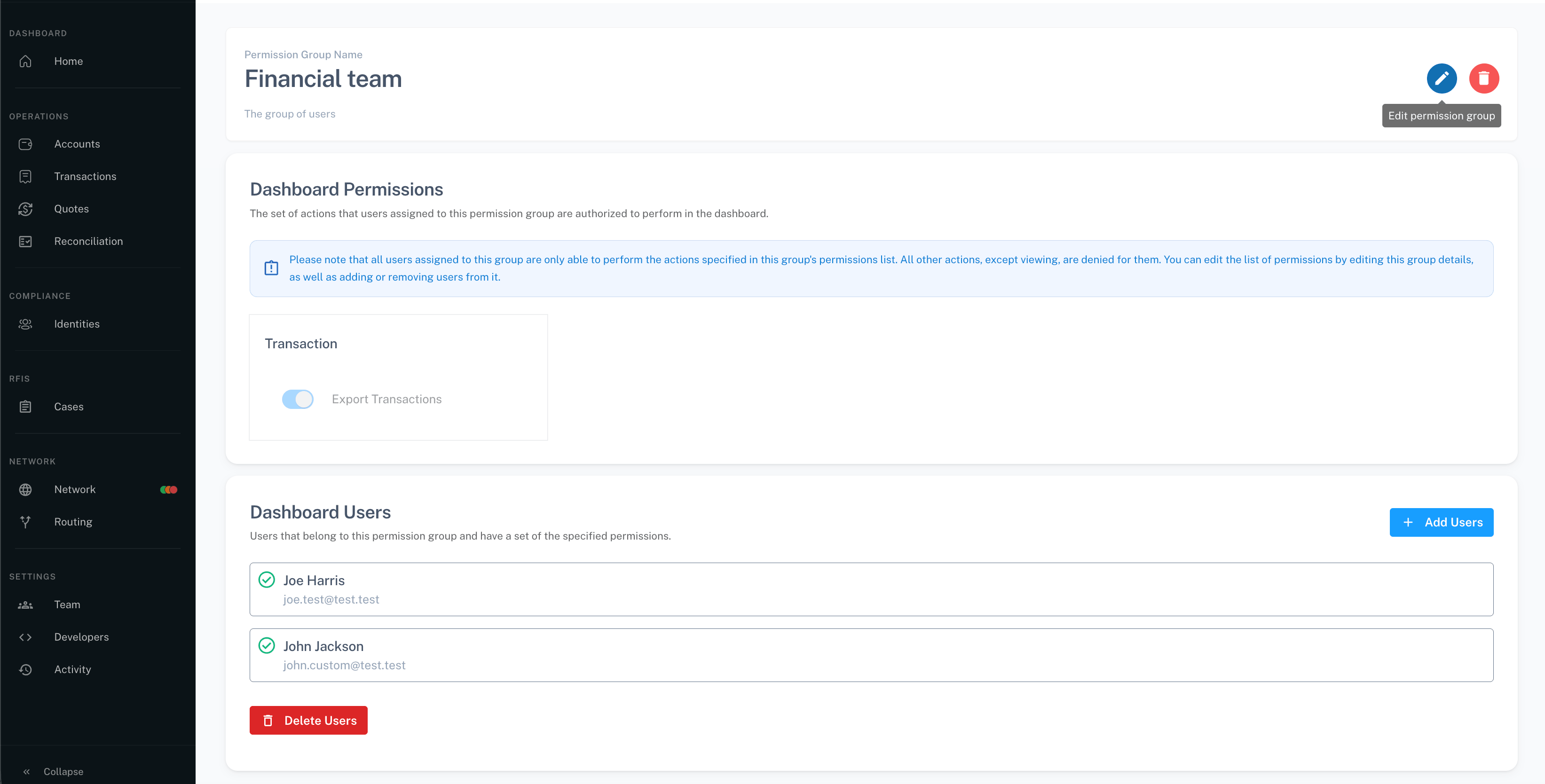
Only users whose role is already **Custom** can belong to a permission group — Owners and Viewers can't be added.
1. Open the group's details page from the **Permission Groups** table.
2. Click **Add Users**.
3. Select from the list of Custom-role users and confirm.
If someone you expect isn't in the list, their role isn't **Custom** — change their role first, then add them.
## Remove users from a group
Removing members is a deliberate three-click flow:
1. Click **Delete Users** to enter selection mode.
2. Check the people to remove, then click **Confirm Deletion**.
3. Click **Remove** in the confirmation modal that opens.
**Cancel deletion** exits selection mode without removing anyone. Removed users keep their Custom role but lose the group's permissions immediately.
## Delete a permission group
Deleting a group removes every member's access to those permissions immediately. You'll be asked to confirm first. If members still need a subset of those permissions, create or assign a replacement group before deleting.
## Set a default refund destination
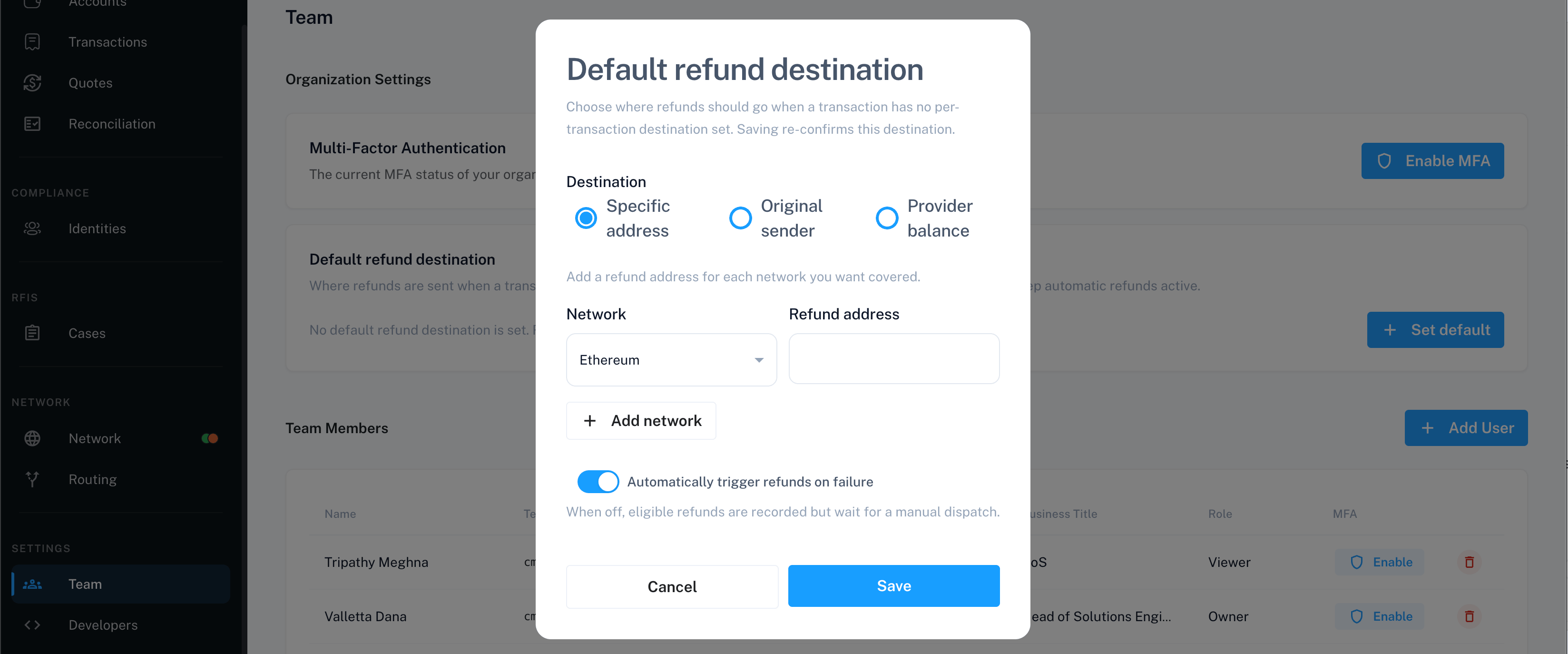
Under **Organization Settings** on the **Team** page, the refund destination card controls where refunds go when a transaction doesn't specify one. If nothing is set, click **Set default** to configure it. If one is already set, you can **Edit**, **Re-confirm**, or **Remove** it.
Re-confirm the destination at least every 90 days. Left unconfirmed, its status badge moves from a "re-confirm recommended" warning to an expired state, and automatic refunds stop working until you re-confirm. Only Owners can manage this — it's not something you can grant through a Custom permission.
## Add users to a group
Only users whose role is already **Custom** can belong to a permission group — Owners and Viewers can't be added.
1. Open the group's details page from the **Permission Groups** table.
2. Click **Add Users**.
3. Select from the list of Custom-role users and confirm.
If someone you expect isn't in the list, their role isn't **Custom** — change their role first, then add them.
## Remove users from a group
Removing members is a deliberate three-click flow:
1. Click **Delete Users** to enter selection mode.
2. Check the people to remove, then click **Confirm Deletion**.
3. Click **Remove** in the confirmation modal that opens.
**Cancel deletion** exits selection mode without removing anyone. Removed users keep their Custom role but lose the group's permissions immediately.
## Delete a permission group
Deleting a group removes every member's access to those permissions immediately. You'll be asked to confirm first. If members still need a subset of those permissions, create or assign a replacement group before deleting.
## Set a default refund destination
Under **Organization Settings** on the **Team** page, the refund destination card controls where refunds go when a transaction doesn't specify one. If nothing is set, click **Set default** to configure it. If one is already set, you can **Edit**, **Re-confirm**, or **Remove** it.
Re-confirm the destination at least every 90 days. Left unconfirmed, its status badge moves from a "re-confirm recommended" warning to an expired state, and automatic refunds stop working until you re-confirm. Only Owners can manage this — it's not something you can grant through a Custom permission.
 ## Troubleshooting
**The refund destination badge shows a warning or error.** It needs re-confirming — the badge moves from a soft warning to an expired state after 90 days without re-confirmation, and automatic refunds stop working until you re-confirm.
**A user I want to add to a permission group isn't in the list.** Only users with the **Custom** role are selectable. Change their role first, then add them to the group.
**I removed the wrong user from a group.** Re-add them through **Add Users** on the group's details page — their Custom role is unaffected by removal, only their group membership.
**I see an error like "Permission groups are playing hide and seek."** That's the platform's informal message for a failed load. Refresh the page; if it persists, contact your Borderless representative.
## Troubleshooting
**The refund destination badge shows a warning or error.** It needs re-confirming — the badge moves from a soft warning to an expired state after 90 days without re-confirmation, and automatic refunds stop working until you re-confirm.
**A user I want to add to a permission group isn't in the list.** Only users with the **Custom** role are selectable. Change their role first, then add them to the group.
**I removed the wrong user from a group.** Re-add them through **Add Users** on the group's details page — their Custom role is unaffected by removal, only their group membership.
**I see an error like "Permission groups are playing hide and seek."** That's the platform's informal message for a failed load. Refresh the page; if it persists, contact your Borderless representative.