> ## Documentation Index
> Fetch the complete documentation index at: https://docs.borderless.xyz/llms.txt
> Use this file to discover all available pages before exploring further.
# Creating Transactions
> Create deposits, withdrawals, and exchanges, and track them to completion.
Most transactions start from an account: depending on the account, you'll see a **Deposit**, **Withdrawal**, or **Exchange** button — each opens a short form, a review screen, and a confirmation. The **Home** page also has its own **Deposit** and **Withdrawal** shortcuts that open the same forms without an account pre-selected. This guide covers all three flows, plus how to track, cancel, and export what you create.
## Money in, money out
Borderless is stablecoin-centric, and the platform uses two words for moving money:
* A **Deposit** brings money in: fiat is onramped into stablecoins. Depending on where you work, you may know this as an onramp, a pay-in, or a collection.
* A **Withdrawal** sends money out: stablecoins are offramped into local fiat. Also known as an offramp or a payout.
Whatever your team calls it, those two buttons are where it happens. A third operation, **Exchange**, converts one asset to another without moving money in or out — covered below.
## Accounts link your wallets — they don't replace them
Transactions start from accounts, so it's worth being clear about what an account is. Creating an account doesn't create a wallet, and you never hold funds in Borderless. You've already chosen, configured, and secured your wallet infrastructure — an account links it to Borderless, connecting the compliance information that lives in the platform (the identity) with the wallets you already run, whether that's Utila, Dfns, Fireblocks, Privy, Turnkey, or anything else on the market.
Accounts come in two types:
* **Wallet accounts** — linked to your own wallet infrastructure. [Wallets](/platform-guides/wallets) covers the linking options.
* **Provider balance accounts** — balances you hold with your providers.
Borderless holds neither. It links, orchestrates, and visualizes: your wallet infrastructure and its balances, and your provider balances, side by side in one place.
## Before you start
You need the **Create Transaction** permission to see the Deposit, Withdrawal, or Exchange buttons on an account (or the Home page shortcuts). If you don't see them, ask your administrator — you may also need a connected web3 provider, which gates transaction buttons on every account type, fiat or crypto.
For deposits, the account needs a linked blockchain address for the asset you want to receive. If it doesn't have one, add it first: on the account page, click **Add Asset** (or **Add Asset / Fiat**) in the Assets section.
## Finding the right button
Open **Accounts** from the nav and click into the account you want to transact on. The buttons next to the account name depend on the account type:
* An account holding a **provider balance** (fiat) shows **Exchange**.
* A **Web3/crypto account** shows **Deposit**.
* **Withdrawal** appears on both.
* Infinia accounts show no Deposit, Withdrawal, or Exchange button at all.
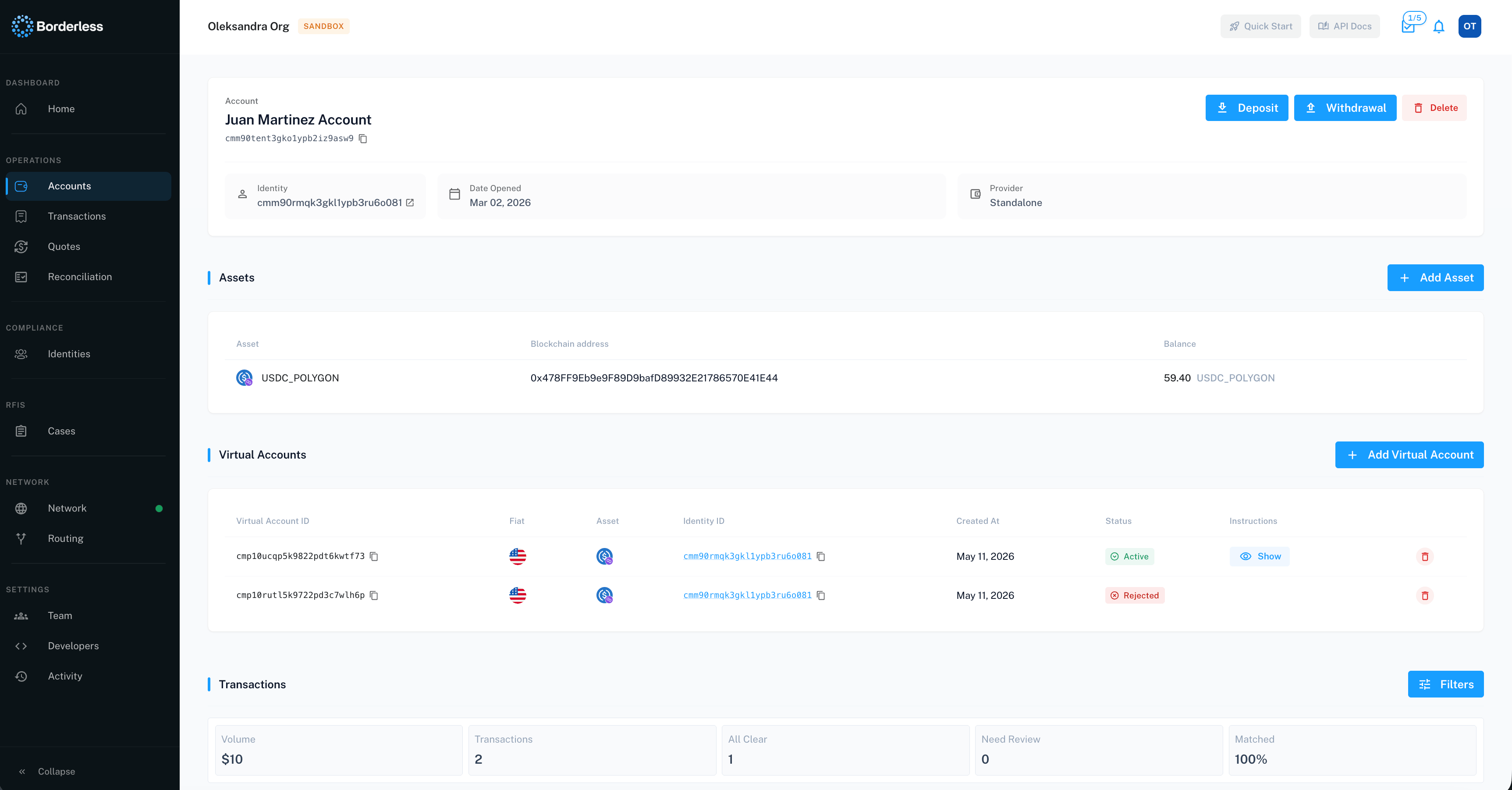
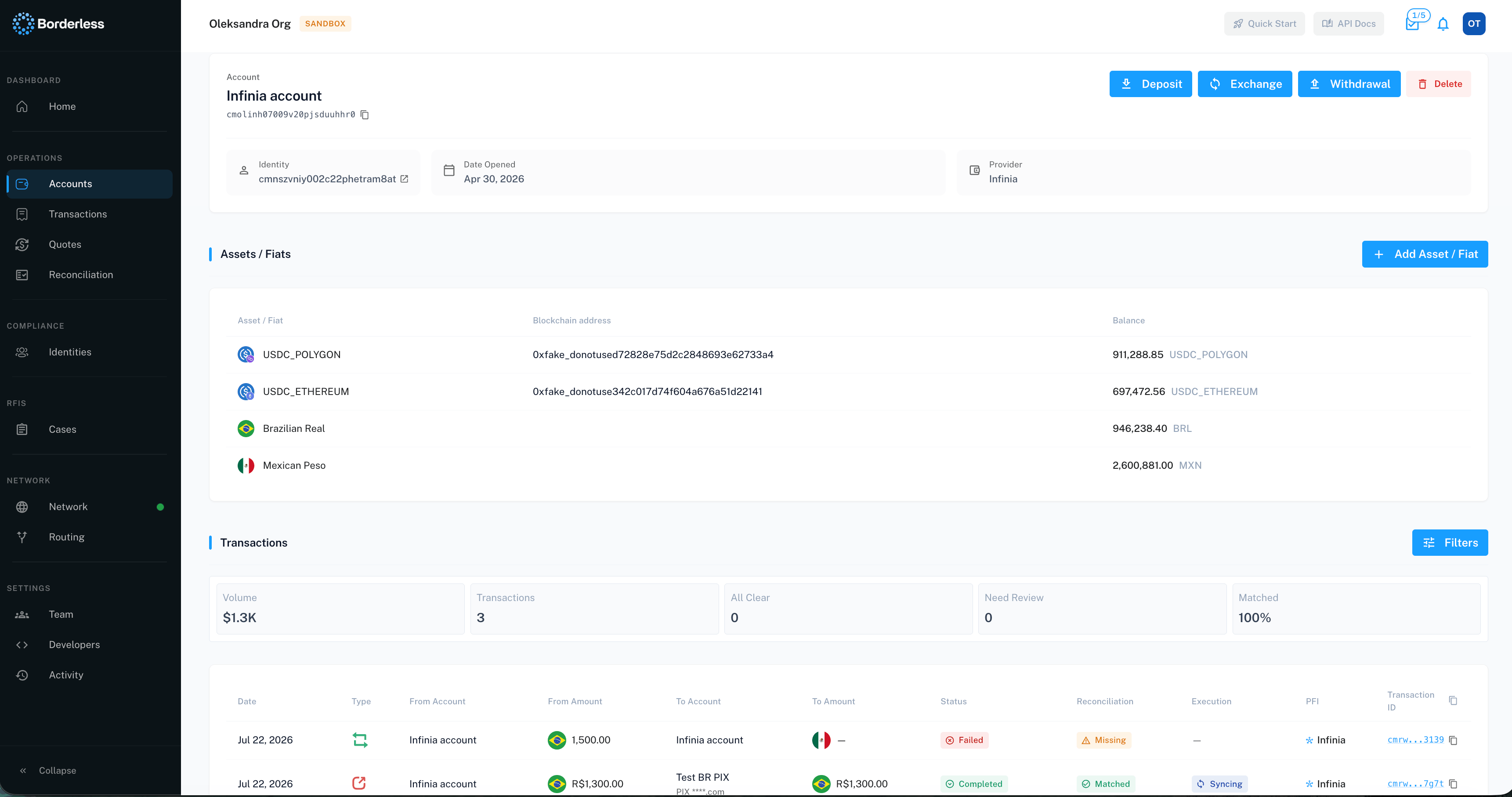 The button is fixed by account type — you can't choose Deposit on a balance account, and a plain crypto-to-crypto move isn't available on one either.
Before you commit to a route, you can preview pricing without creating anything. **Quotes**, in the nav, compares provider rates for a deposit or withdrawal. **Rates** shows a market-rate comparison table. Neither creates a transaction — use them to check pricing, then go to the account to submit.
## Depositing funds
A deposit brings fiat in and converts it to a stablecoin or other asset in a Web3 account.
1. On the account page, click **Deposit**.
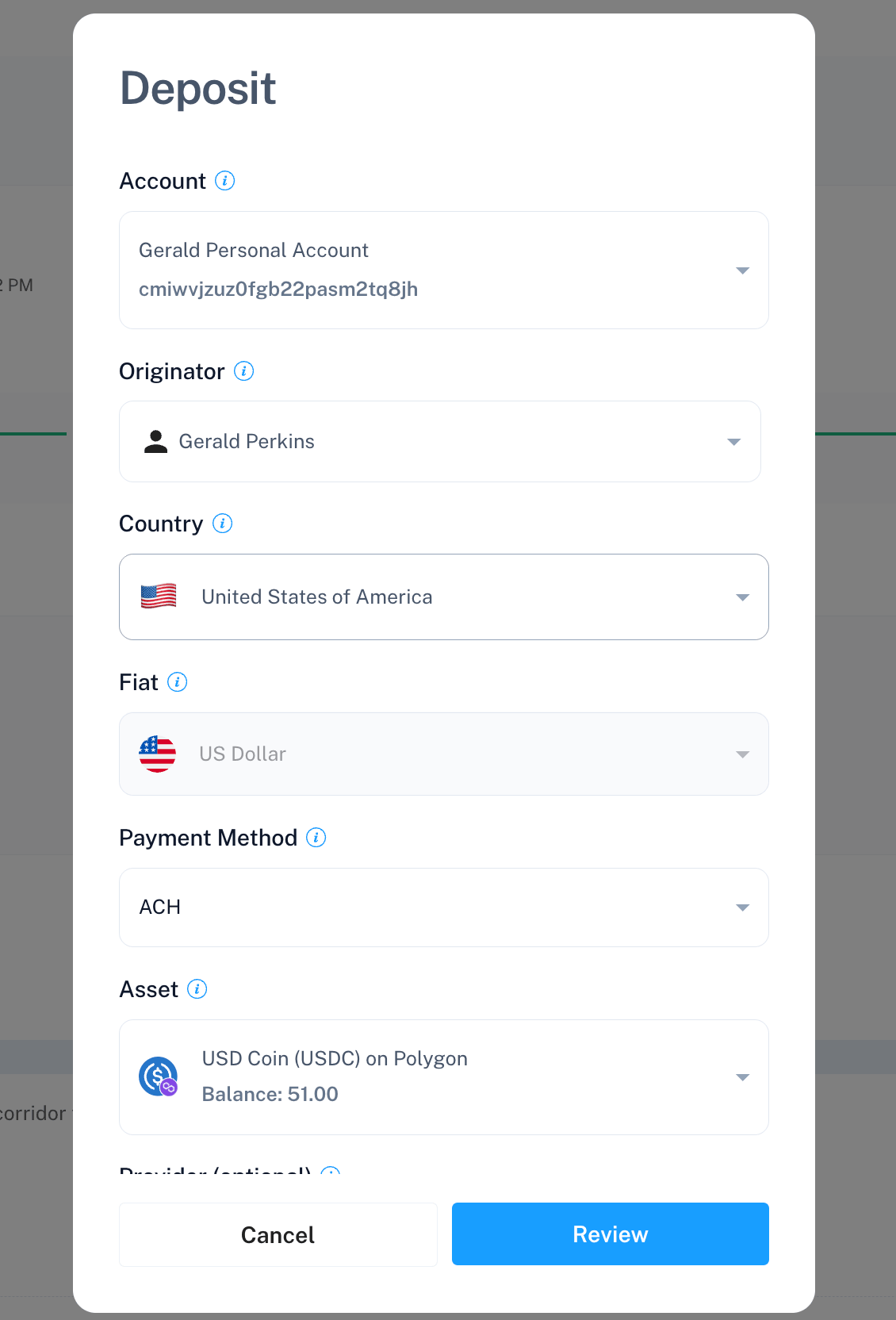
2. Fill in the form:
* **Account** — pre-filled if you have only one.
* **Originator** — the identity initiating the transaction. It must have passed compliance checks in the country you select.
* **Country** and **Fiat** — the source of funds.
* **Payment Method** — how you're sending the fiat.
* **Asset** — the stablecoin or asset you'll receive. If this shows "No available blockchain addresses," go back and add one via **Add Asset** on the account page.
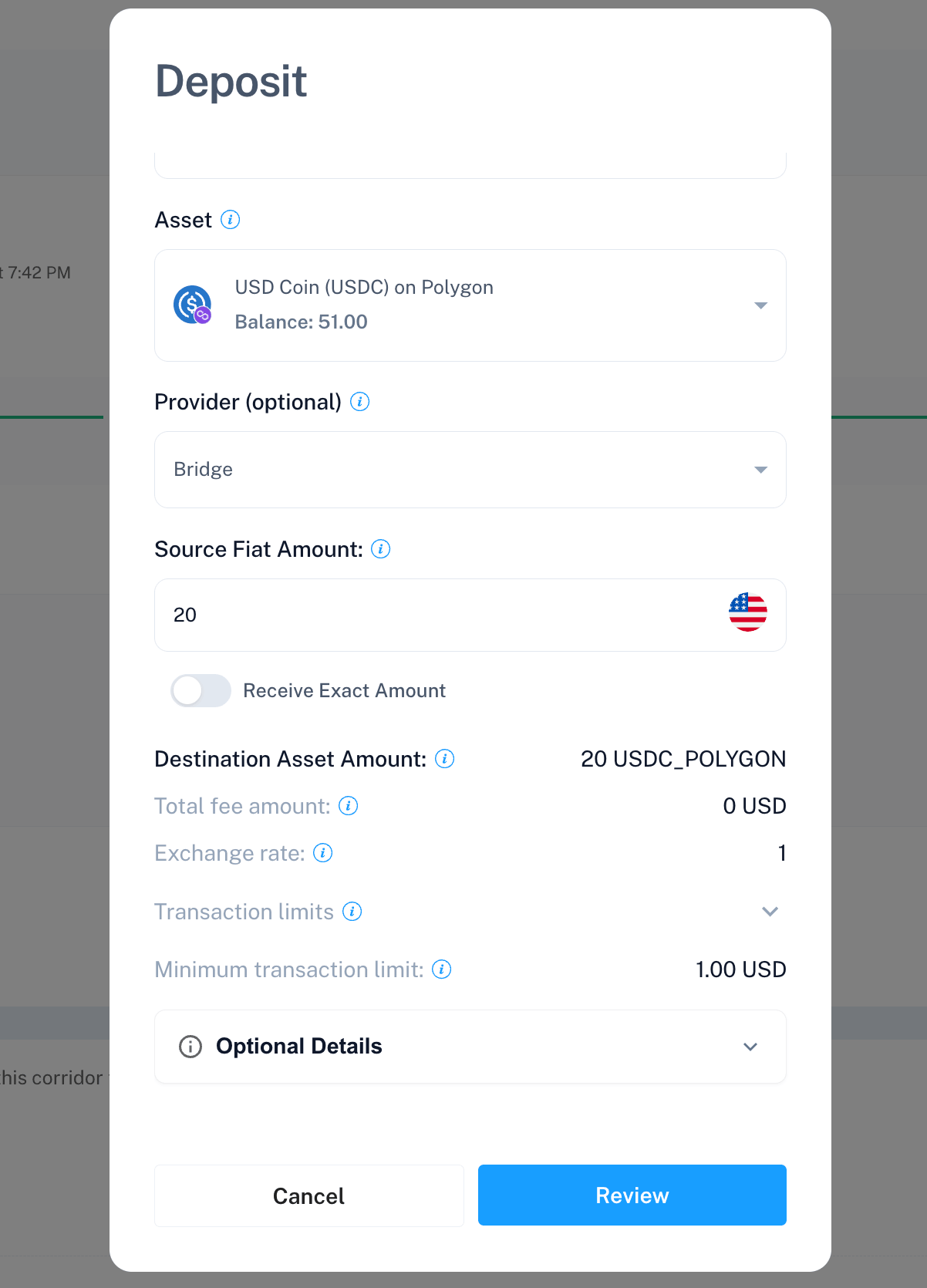
* **Provider (optional)** — pick a provider explicitly to route this transaction through it, or leave **Use default routing** to follow the defaults you've configured in the [routing table](/platform-guides/routing). Appears as soon as your organization has at least one active provider.
* Amount — turn on **Receive Exact Amount** if you'd rather enter what you want to receive than what you're sending.
* Optional: expand **Optional Details** to attach a supporting document.
3. Click **Review**. This stays disabled until Borderless has a live quote for your inputs — if it won't activate, check the form for a routing warning.
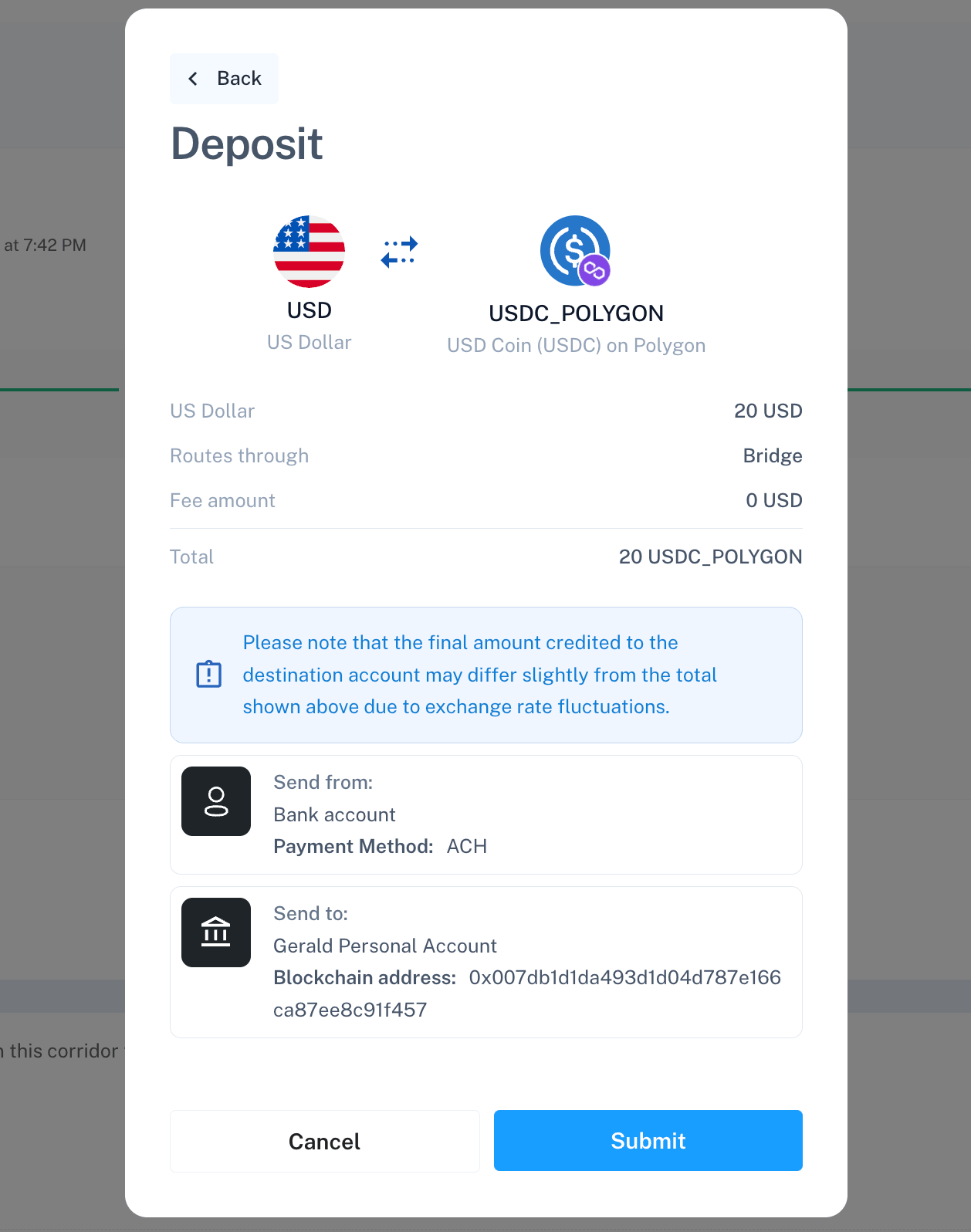
4. Check the review screen: the source amount, what it **Routes through**, the fee, and the total. A notice here warns that the amount credited may differ slightly, since exchange rates move between quote and settlement.
5. Click **Submit**.
6. You'll land on a **Thank You** confirmation. Click **Check status** to open the transaction's detail page.
The button is fixed by account type — you can't choose Deposit on a balance account, and a plain crypto-to-crypto move isn't available on one either.
Before you commit to a route, you can preview pricing without creating anything. **Quotes**, in the nav, compares provider rates for a deposit or withdrawal. **Rates** shows a market-rate comparison table. Neither creates a transaction — use them to check pricing, then go to the account to submit.
## Depositing funds
A deposit brings fiat in and converts it to a stablecoin or other asset in a Web3 account.
1. On the account page, click **Deposit**.
2. Fill in the form:
* **Account** — pre-filled if you have only one.
* **Originator** — the identity initiating the transaction. It must have passed compliance checks in the country you select.
* **Country** and **Fiat** — the source of funds.
* **Payment Method** — how you're sending the fiat.
* **Asset** — the stablecoin or asset you'll receive. If this shows "No available blockchain addresses," go back and add one via **Add Asset** on the account page.
* **Provider (optional)** — pick a provider explicitly to route this transaction through it, or leave **Use default routing** to follow the defaults you've configured in the [routing table](/platform-guides/routing). Appears as soon as your organization has at least one active provider.
* Amount — turn on **Receive Exact Amount** if you'd rather enter what you want to receive than what you're sending.
* Optional: expand **Optional Details** to attach a supporting document.
3. Click **Review**. This stays disabled until Borderless has a live quote for your inputs — if it won't activate, check the form for a routing warning.
4. Check the review screen: the source amount, what it **Routes through**, the fee, and the total. A notice here warns that the amount credited may differ slightly, since exchange rates move between quote and settlement.
5. Click **Submit**.
6. You'll land on a **Thank You** confirmation. Click **Check status** to open the transaction's detail page.
 ## Withdrawing funds
A withdrawal moves funds out — onchain to a wallet, or offramp to a bank account, depending on the payment instruction you pick.
1. On the account page, click **Withdrawal**.
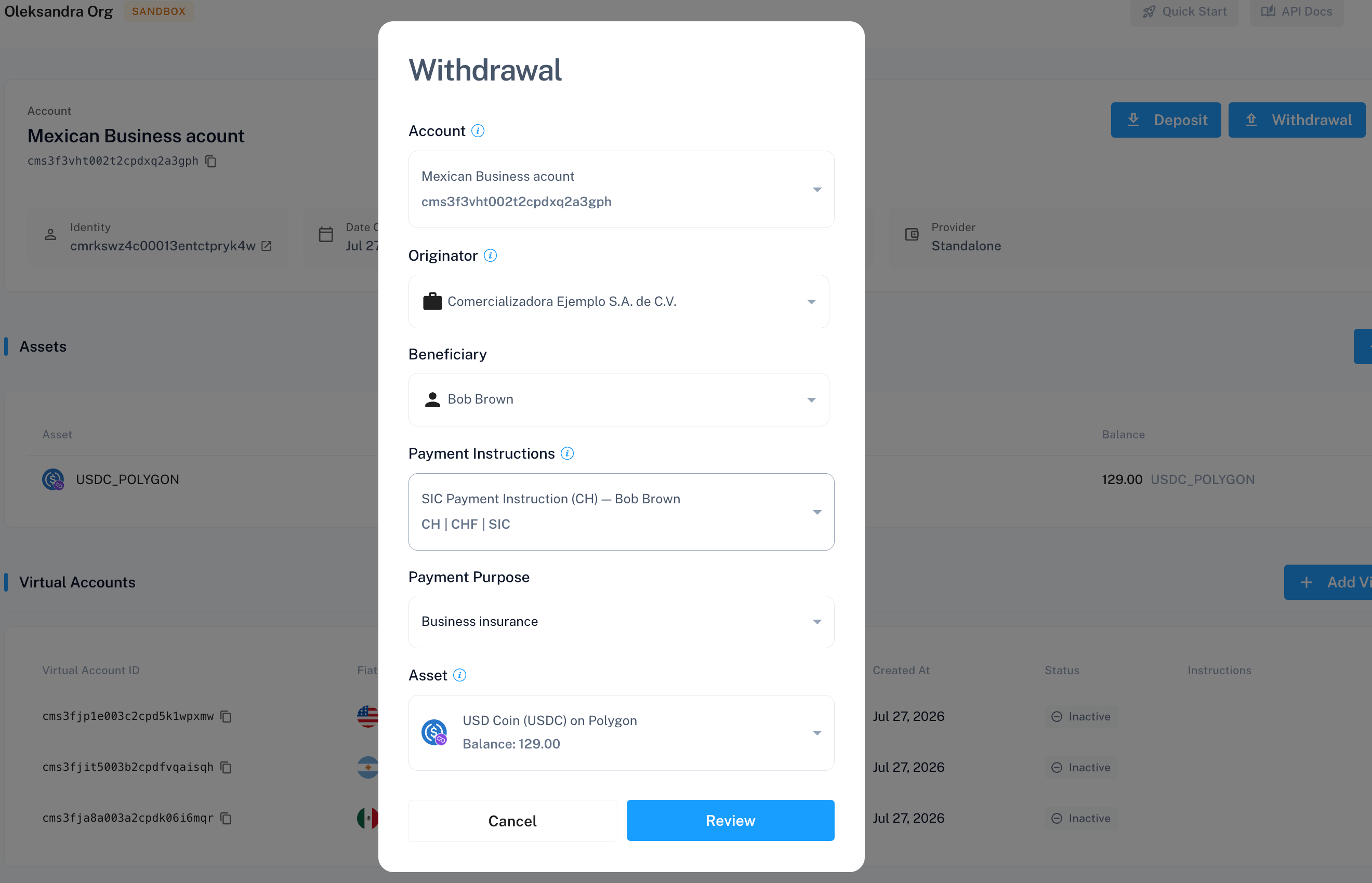
2. Fill in the form:
* **Account**, **Originator** — same as Deposit.
* **Beneficiary** — who receives the funds. It auto-fills to match Originator whenever you change Originator — including if you'd already edited Beneficiary by hand, so re-check it after changing Originator.
* **Payment Instructions** — where the funds go. Picking one back-fills country, fiat, and payment method. "No available payment instructions" means you need to add one first.
* **Payment Purpose** — required (for example, salary payment, rent payment, or property purchase).
* **Asset** — shown only for Web3 accounts; hidden on balance accounts, which pay out directly in fiat.
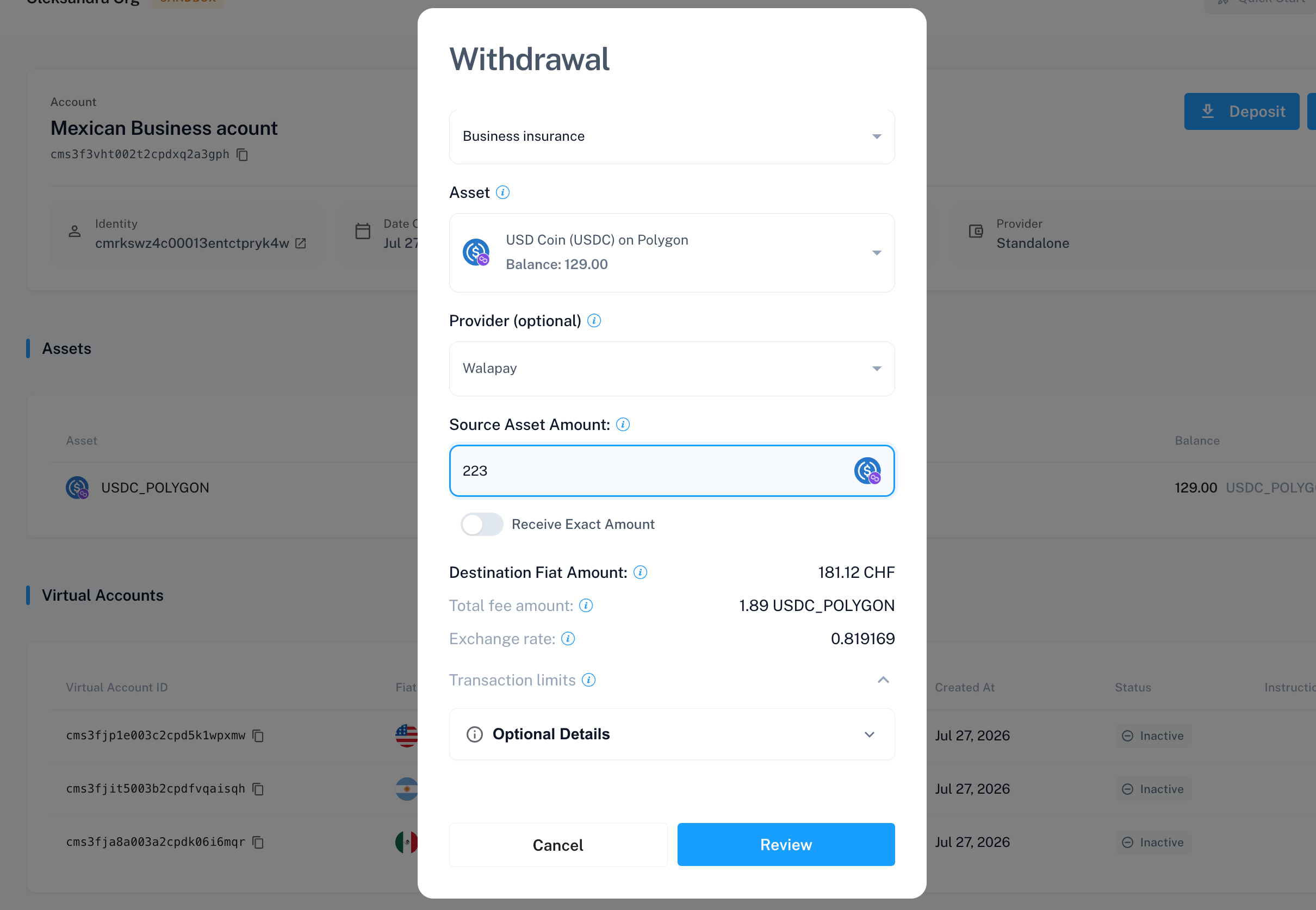
* **Provider (optional)** — same as Deposit.
* Amount — same **Receive Exact Amount** toggle as Deposit.
* Optional: expand **Optional Details** for a **Reference** message (length depends on the rail — 1–256 characters for wire, 1–10 for ACH, 6–140 for SEPA, 1–190 for SWIFT) and to attach a document.
3. Click **Review** — disabled until a quote loads.
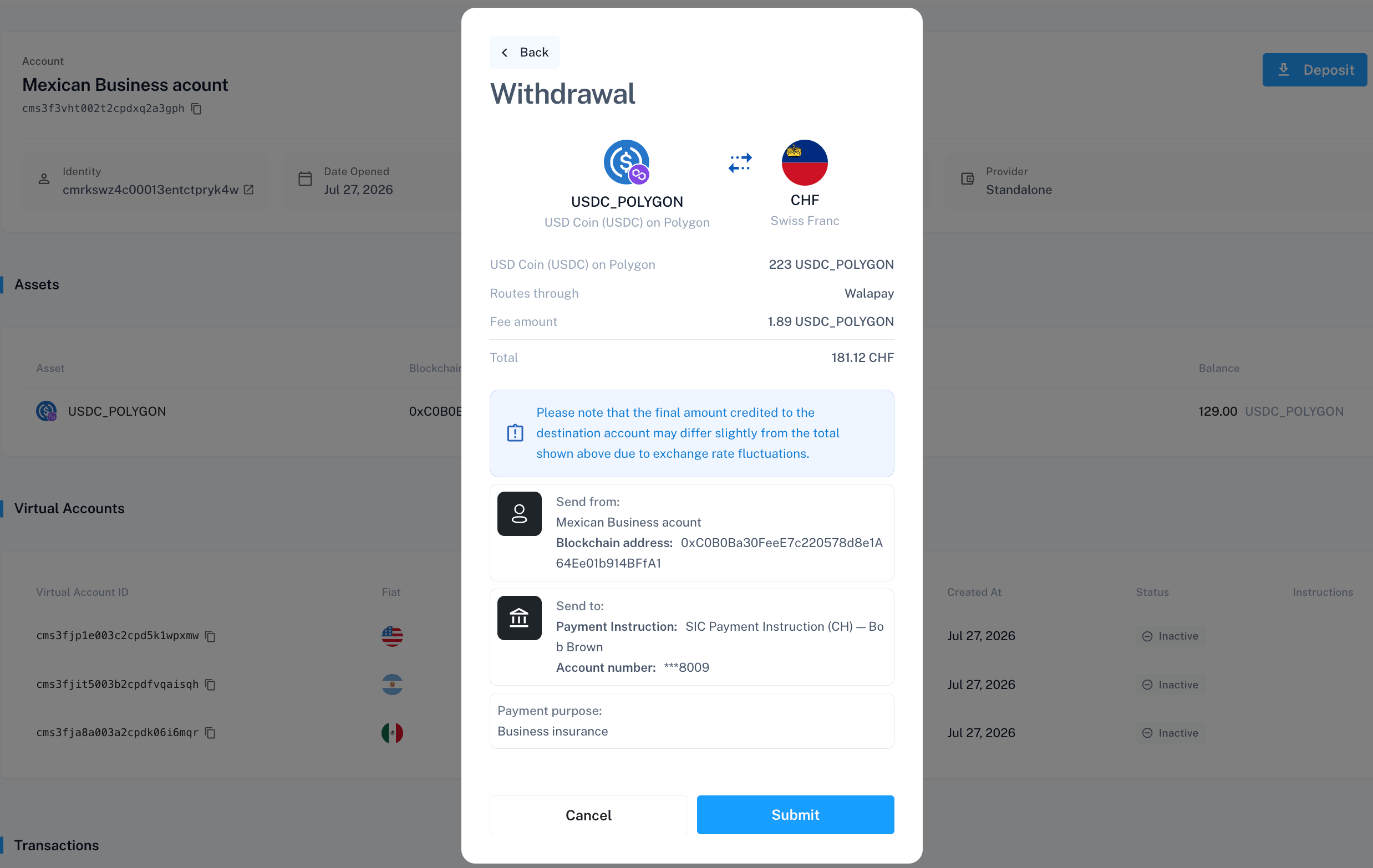
4. Check the review screen: amount, provider, fee, total, payment purpose, and your reference if you added one. The same FX-fluctuation notice as Deposit applies.
5. Click **Submit**, then **Check status** on the confirmation screen.
## Withdrawing funds
A withdrawal moves funds out — onchain to a wallet, or offramp to a bank account, depending on the payment instruction you pick.
1. On the account page, click **Withdrawal**.
2. Fill in the form:
* **Account**, **Originator** — same as Deposit.
* **Beneficiary** — who receives the funds. It auto-fills to match Originator whenever you change Originator — including if you'd already edited Beneficiary by hand, so re-check it after changing Originator.
* **Payment Instructions** — where the funds go. Picking one back-fills country, fiat, and payment method. "No available payment instructions" means you need to add one first.
* **Payment Purpose** — required (for example, salary payment, rent payment, or property purchase).
* **Asset** — shown only for Web3 accounts; hidden on balance accounts, which pay out directly in fiat.
* **Provider (optional)** — same as Deposit.
* Amount — same **Receive Exact Amount** toggle as Deposit.
* Optional: expand **Optional Details** for a **Reference** message (length depends on the rail — 1–256 characters for wire, 1–10 for ACH, 6–140 for SEPA, 1–190 for SWIFT) and to attach a document.
3. Click **Review** — disabled until a quote loads.
4. Check the review screen: amount, provider, fee, total, payment purpose, and your reference if you added one. The same FX-fluctuation notice as Deposit applies.
5. Click **Submit**, then **Check status** on the confirmation screen.
 If you're sending stablecoins onchain, confirm the destination address and network before submitting. Borderless can't refund stablecoins sent to the wrong address or network.
## Exchanging funds
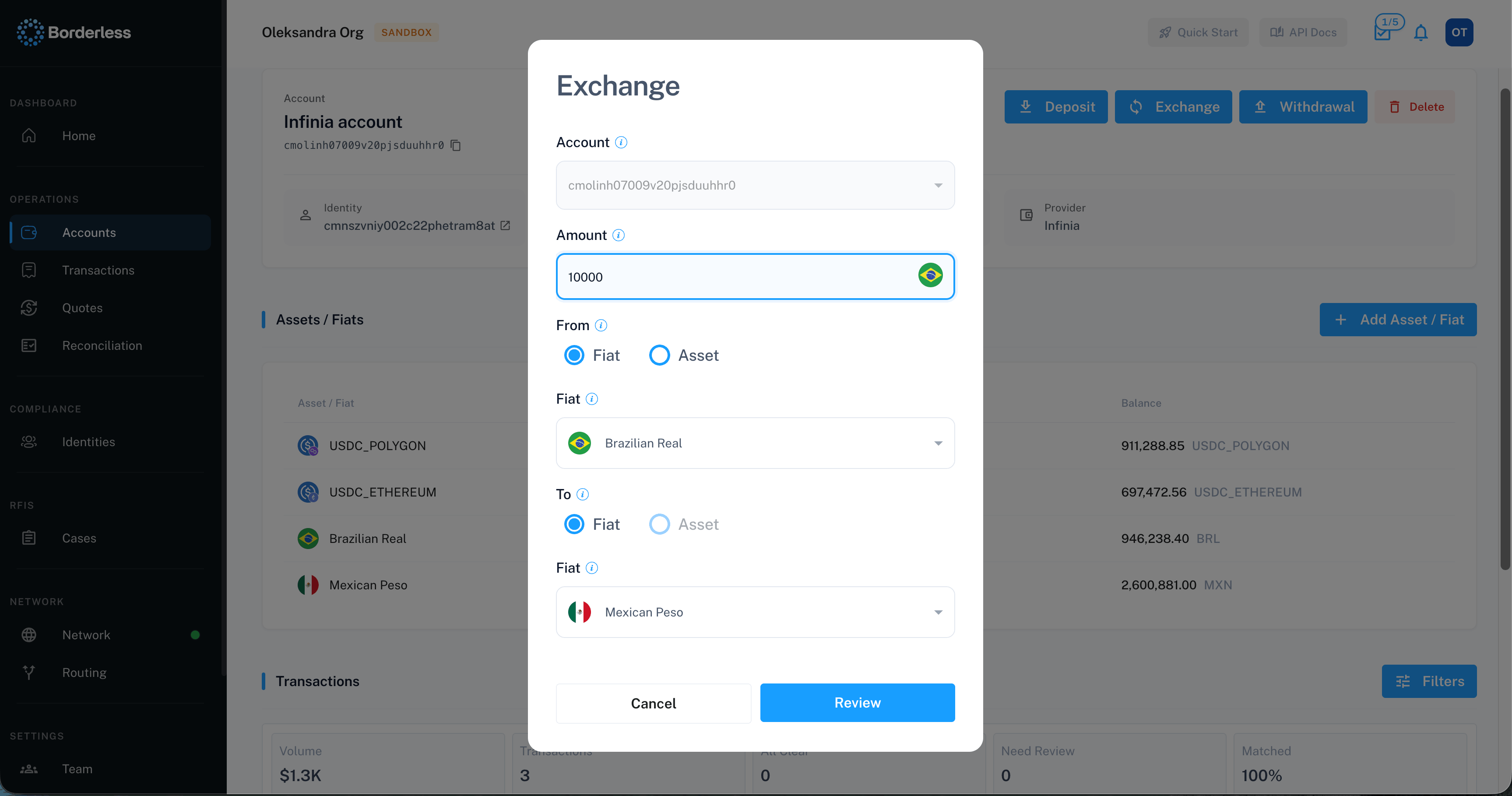
Exchange converts one asset to another inside a balance you hold with a provider — without a deposit or a withdrawal. No money comes in and none goes out, so you can manage conversions separately from money movement.
1. On the account page, click **Exchange**.
2. Fill in **Amount** and choose the **From** and **To** sides. Each side is either a fiat currency or an asset — what's available to select depends on your providers and their configuration.
3. Click **Review**.
4. Check the total and the account the exchange happens within.
5. Click **Submit**, then **Check status**.
If you're sending stablecoins onchain, confirm the destination address and network before submitting. Borderless can't refund stablecoins sent to the wrong address or network.
## Exchanging funds
Exchange converts one asset to another inside a balance you hold with a provider — without a deposit or a withdrawal. No money comes in and none goes out, so you can manage conversions separately from money movement.
1. On the account page, click **Exchange**.
2. Fill in **Amount** and choose the **From** and **To** sides. Each side is either a fiat currency or an asset — what's available to select depends on your providers and their configuration.
3. Click **Review**.
4. Check the total and the account the exchange happens within.
5. Click **Submit**, then **Check status**.
 ## Checking transaction status
Go to **Transactions** to see every transaction, or view them embedded on an account's page. The **All / Orchestrated / Imported** tabs filter between transactions Borderless routed and ones imported from a connected provider without Borderless routing.
The table shows date, type, source and destination accounts and amounts, status, provider, and transaction ID. Click a row to open its detail page, or use the copy icon in the table header to copy every visible transaction ID at once.
## Checking transaction status
Go to **Transactions** to see every transaction, or view them embedded on an account's page. The **All / Orchestrated / Imported** tabs filter between transactions Borderless routed and ones imported from a connected provider without Borderless routing.
The table shows date, type, source and destination accounts and amounts, status, provider, and transaction ID. Click a row to open its detail page, or use the copy icon in the table header to copy every visible transaction ID at once.
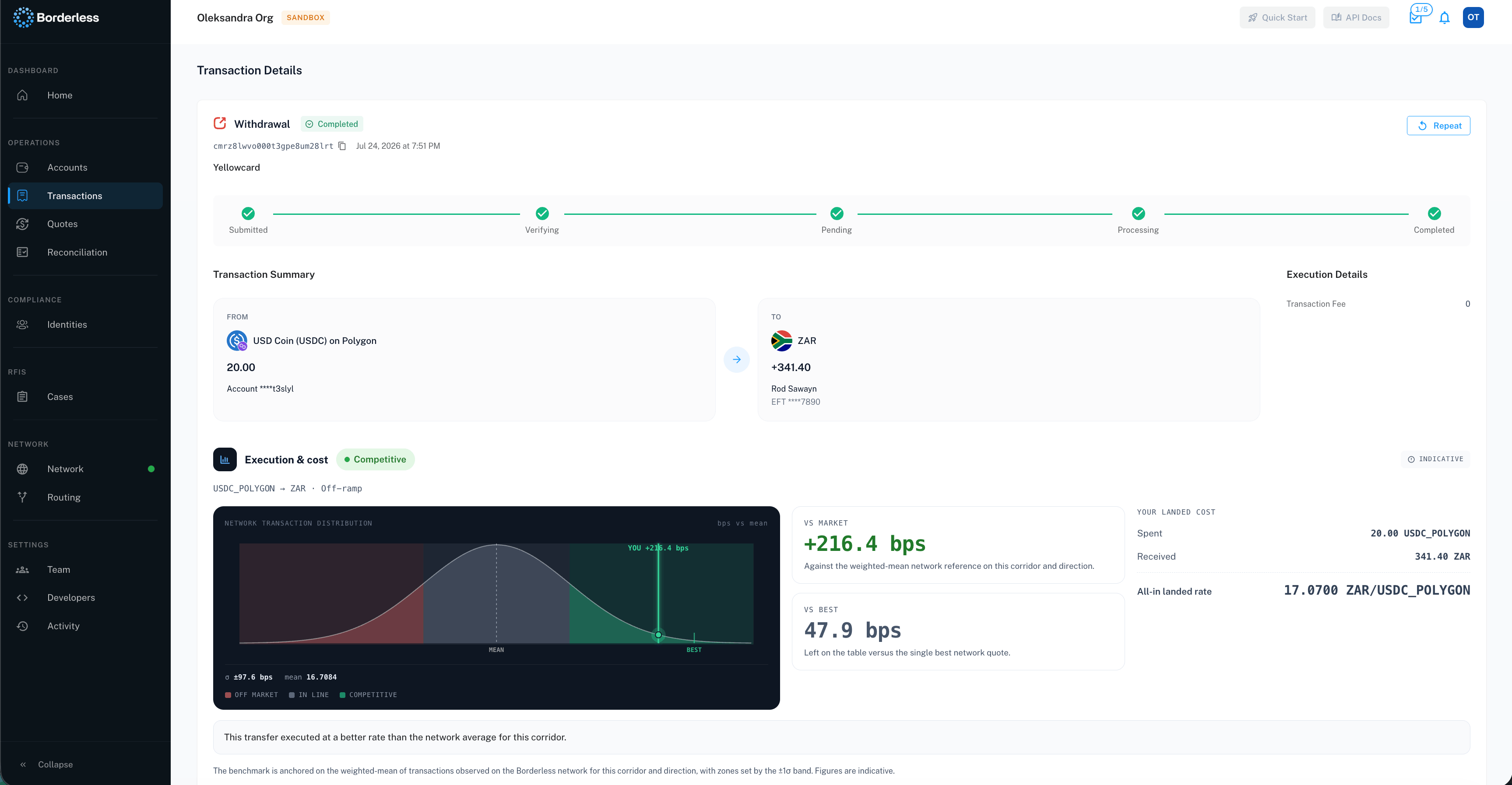
 A transaction moves through **Submitted**, **Verifying**, **Orchestrating**, **Pending**, **Processing**, then **Completed**. Orchestrating has its own chip and color in the table and its own option in the status filter — it isn't folded into Verifying anywhere except the status timeline on the detail page, which groups it with Verifying as a single step. Two statuses need attention:
* **Pending** means the transaction needs action from you — the detail page shows what to do.
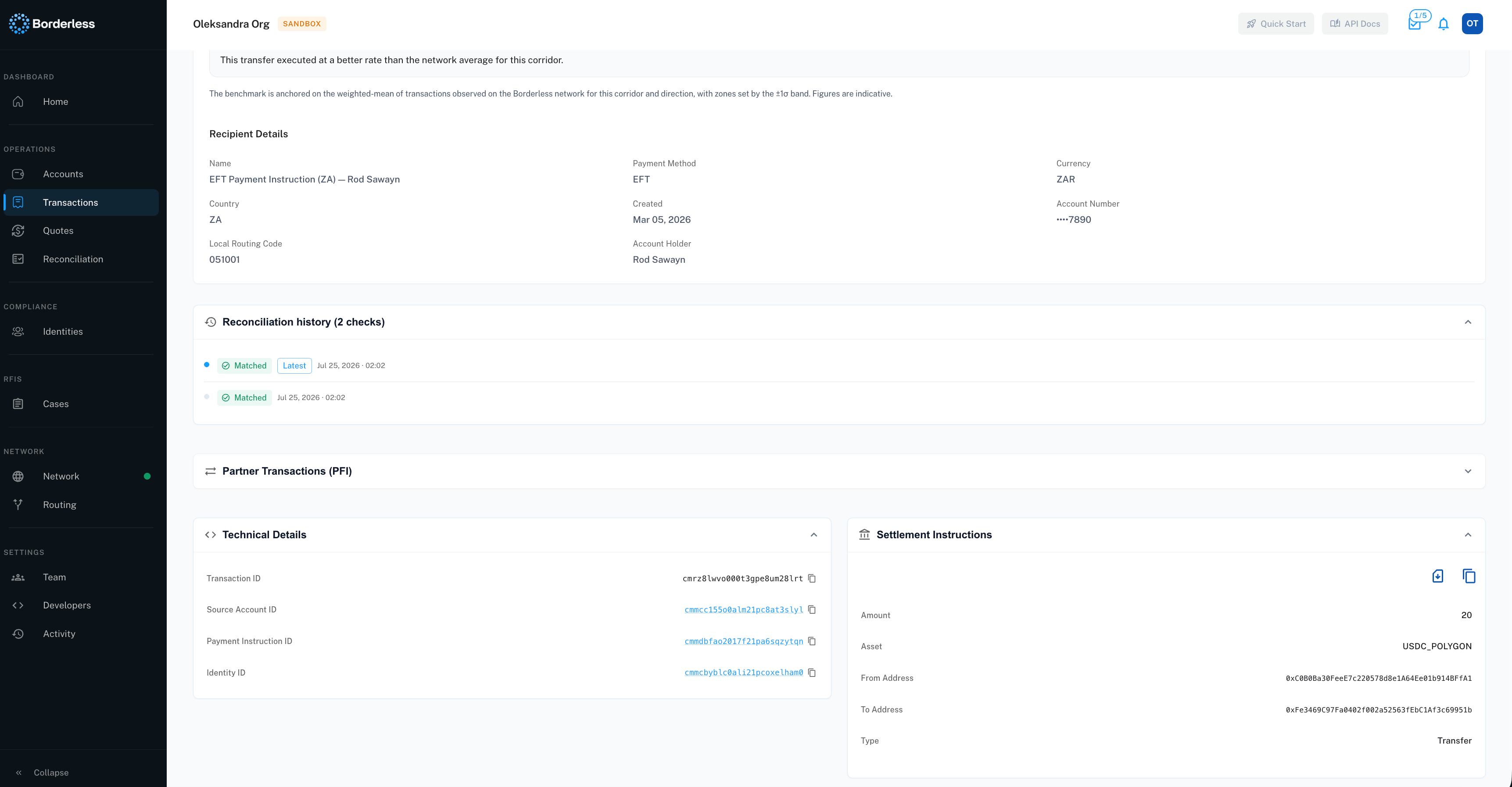
* **Failed**, **Cancelled**, and **Refunded** are end states; a failed transaction shows the reason on its detail page.
A transaction moves through **Submitted**, **Verifying**, **Orchestrating**, **Pending**, **Processing**, then **Completed**. Orchestrating has its own chip and color in the table and its own option in the status filter — it isn't folded into Verifying anywhere except the status timeline on the detail page, which groups it with Verifying as a single step. Two statuses need attention:
* **Pending** means the transaction needs action from you — the detail page shows what to do.
* **Failed**, **Cancelled**, and **Refunded** are end states; a failed transaction shows the reason on its detail page.
 ## Cancelling a transaction
You can cancel only while a transaction is **Submitted**, **Verifying**, **Orchestrating**, or **Pending**. Once it reaches Processing, there's no cancel option.
1. Open the transaction's detail page.
2. Click **Cancel**.
3. Read the confirmation dialog: cancellation isn't guaranteed — it depends on the stage the provider has reached.
4. Click **Confirm**.
You need the **Cancel Transaction** permission to see this button.
## Exporting and filtering transactions
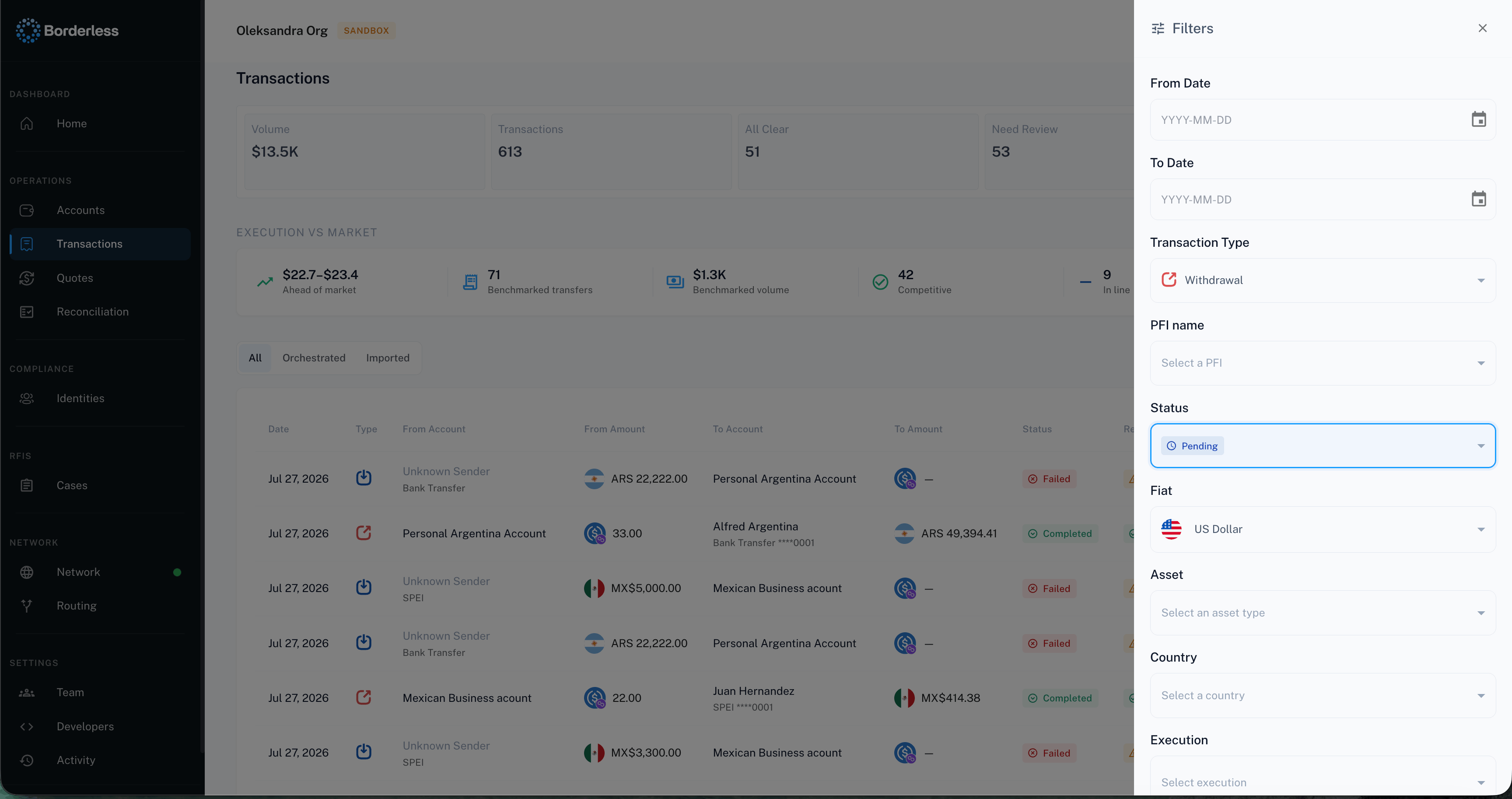
From the **Transactions** list, click **Filters** to narrow the table by date, type, provider, status, currency, asset, country, or account ID, then **Apply**. Click **Export** to download a CSV — you need the **Export Transactions** permission to see this button. Export opens its own blank filter form (date range, type, provider, status, source/destination account ID); it isn't pre-populated from the Filters panel, so set your criteria there separately rather than assuming it exports whatever the table currently shows. Export is only available from the standalone Transactions page, not on the embedded Transactions view on an account's page.
This section covers the quick path; for everything about getting data out — filter details, filename conventions, reconciliation run exports, and size limits — see [Exporting Reports](/platform-guides/exporting-reports).
## Troubleshooting
**The Review button won't activate.** Deposit and Withdrawal need a live quote first, which depends on country, fiat, payment method, and asset resolving to a route a provider supports. A warning nearby usually says why — no active provider for that combination, or no default routing set up for the country.
**"No available blockchain addresses."** The account has no linked address for the asset, country, fiat, and payment method you chose. Go to the account page and click **Add Asset** to link one.
**Quote error.** The form tells you why a quote failed — an unsupported country, an amount outside limits, missing provider credentials, or a generic message asking you to adjust your inputs and try again.
**The final amount doesn't match the quote.** Small differences are normal — rates move between the quote and when the provider executes the transaction.
**A deposit, withdrawal, or exchange won't submit.** You'll see an error toast if the request fails. Try again, and if it keeps failing, check back shortly or contact support.
**Cancel didn't stop the transaction.** Cancellation isn't guaranteed. If the provider already moved past a cancellable stage, the transaction continues processing.
## Cancelling a transaction
You can cancel only while a transaction is **Submitted**, **Verifying**, **Orchestrating**, or **Pending**. Once it reaches Processing, there's no cancel option.
1. Open the transaction's detail page.
2. Click **Cancel**.
3. Read the confirmation dialog: cancellation isn't guaranteed — it depends on the stage the provider has reached.
4. Click **Confirm**.
You need the **Cancel Transaction** permission to see this button.
## Exporting and filtering transactions
From the **Transactions** list, click **Filters** to narrow the table by date, type, provider, status, currency, asset, country, or account ID, then **Apply**. Click **Export** to download a CSV — you need the **Export Transactions** permission to see this button. Export opens its own blank filter form (date range, type, provider, status, source/destination account ID); it isn't pre-populated from the Filters panel, so set your criteria there separately rather than assuming it exports whatever the table currently shows. Export is only available from the standalone Transactions page, not on the embedded Transactions view on an account's page.
This section covers the quick path; for everything about getting data out — filter details, filename conventions, reconciliation run exports, and size limits — see [Exporting Reports](/platform-guides/exporting-reports).
## Troubleshooting
**The Review button won't activate.** Deposit and Withdrawal need a live quote first, which depends on country, fiat, payment method, and asset resolving to a route a provider supports. A warning nearby usually says why — no active provider for that combination, or no default routing set up for the country.
**"No available blockchain addresses."** The account has no linked address for the asset, country, fiat, and payment method you chose. Go to the account page and click **Add Asset** to link one.
**Quote error.** The form tells you why a quote failed — an unsupported country, an amount outside limits, missing provider credentials, or a generic message asking you to adjust your inputs and try again.
**The final amount doesn't match the quote.** Small differences are normal — rates move between the quote and when the provider executes the transaction.
**A deposit, withdrawal, or exchange won't submit.** You'll see an error toast if the request fails. Try again, and if it keeps failing, check back shortly or contact support.
**Cancel didn't stop the transaction.** Cancellation isn't guaranteed. If the provider already moved past a cancellable stage, the transaction continues processing.